
Click the video name for a quick overview and lots of tips for MSWhse Online Help.
|
|
Click the video name for a quick overview and lots of tips for MSWhse Online Help. |
Using the MSWhse Online Help is very similar to the MoversSuite Online Help. This Online Help, however, is not release related. There is just one Online Help version for MSWhse and it is the most recent version.
There are three ways to access the MSWhse Online Help:
1. From the MSWhse Online Help button within MSWhse. The small icon is what shows when the screen is minimized. Clicking either icon will open the MSWhse Online Help within another tab.
 or
or 
2. From this through this url: https://www.ewsgroup.com/moverssuite/support/MSWhse/OLH/OnlineHelp/index.html
3. From the MSWhse Support site > Online Help tab.
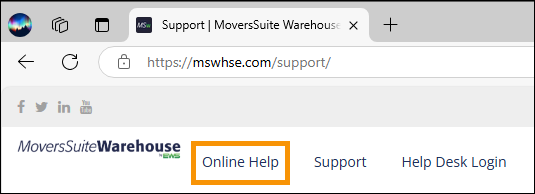
Figure 1: MSWhse Support > Online Help
The screen layout consists of a navigation pane that includes Contents, Topics, and Search tabs that you can use to locate topics.
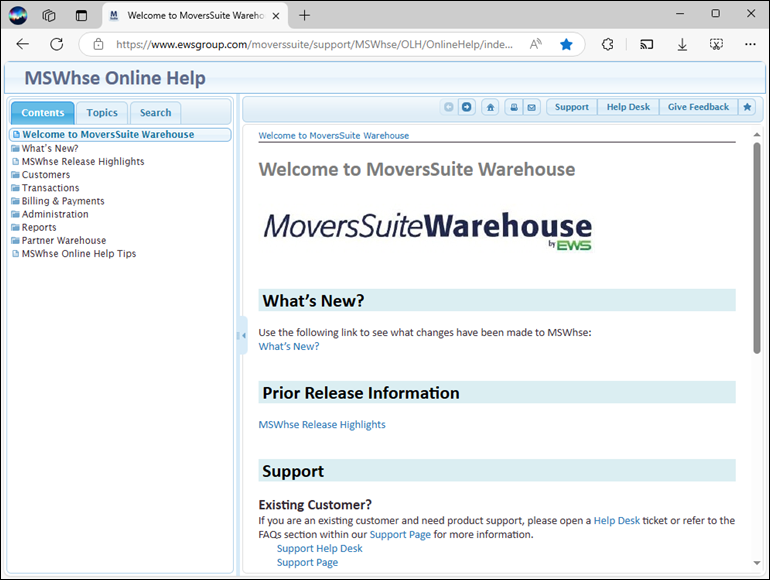
Figure 2: MSWhse Online Help
Contents tab
“Contents“ is the list of all topic names with the MSWhse Online Help. It is the Online Help’s Table of Contents. Of note, notice that the topics “Customers” through “Reports” are the same as the sections found in the MSWhse Navigation Menu (Figure 4). Also, Partner Warehouse customers should go to the PW Online Help Tips for a tip unique to those customers.
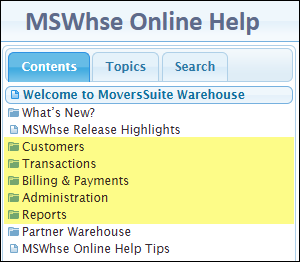
Figure 3: Contents list
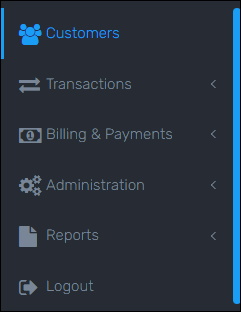
Figure 4: MSWhse Navigation Menu
Notice some names have a folder icon  , which indicates there are contents in that
folder. Click on any folder, such as “Customer” in the image below, to open a
list of more topics within that section. There aren’t any more topics to click
through to from any topic with the document icon
, which indicates there are contents in that
folder. Click on any folder, such as “Customer” in the image below, to open a
list of more topics within that section. There aren’t any more topics to click
through to from any topic with the document icon  .
.
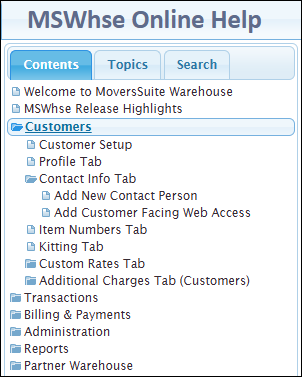
Figure 5: Open folders for more topics.
Topics tab
Under Topics, find a list of names that are areas within the MSWhse, such as the tabs, or the name will relate to functionality. Either scroll through the Topic names or enter a search under Topics or Search. Go to the Topics tab for an alphabetized list of all topic names. Use the Topics search to filter results by just Topic Names. This Topics search will look for exact matches only. For example, entering “billing” under Topics returns one result: Billing & Payments; however, entering “payments” under Topics will not return “Billing & Payments.” This search looks for exact matches from the beginning of the topic name only.
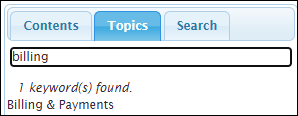
Figure 6: Topics tab
Search tab
Enter “billing” under the Search tab and every instance where “billing” is used within the entire MSWhse Online Help will be listed in the results. The results are the Topic Names that contain that search criteria. Currently, that search returns 13 results.
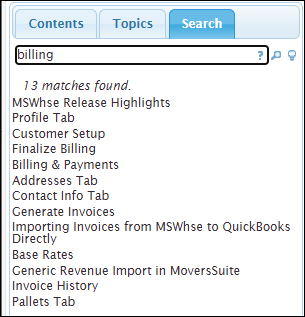
Figure 7: Search tab