Navigation Menu > Billing & Payments > Invoice History
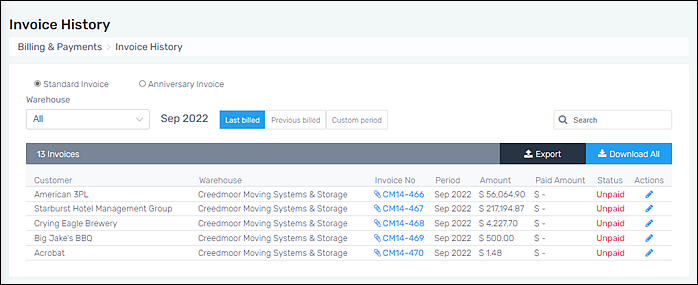
Go to “Invoice History” to view a list of all the previous month’s invoices by month. Sort by Standard Invoice or Anniversary Invoice, which are located above the Warehouse dropdown. Then sort the list by Warehouse, if needed. The sort defaults to “All” for warehouse. Use the dropdown to set another option.
Further filter the list by using the date buttons Last Billed, Previous billed, or Custom Period. If looking for more specific invoices, use the Search function.
Figure 2: Invoice History
To download a PDF of each invoice of the displayed month:
Simply click the blue “Download All” button. This creates a .zip file within your Downloads folder. Click to open the folder which has these two options:

For Customers who have the “Send invoice by email” option set within their Customer record > Contact Info, a copy of the invoice is created and is located within the “For Email” file. All other invoices will be included within the “For Print” file.
To Export a list of all invoice line items for all invoices displayed:
Click the Export button. This will create an Excel file within your Download file.
To enter a payment:
NOTE: This step is not necessary and completely optional. Should your company wish to take advantage of this functionality, these are the instructions
Click the blue pen icon under “Actions” to open the “Edit paid amount” screen. Enter the amount and save.
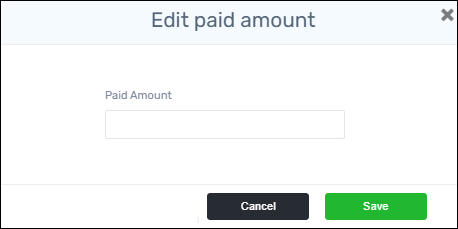
When saved, the status will show “Paid” and the paid amount.
