
Navigation Menu > Billing & Payments > Invoice History
NOTE: If you wish to have the Invoice numbers from MSWhse imported into QuickBooks, rather than the next sequential transaction number, please go to the Gear at the top right and choose Accounts and settings. Go to Sales, click the pencil button to the right of the Sales and content section. Turn the “Customer Transaction Numbers” to ON.
1. Once a month has been finalized, go to MSWhse > Navigation Menu > Billing & Payments > Invoice History.
2. Export the desired month invoice list to be imported into QuickBooks. This will populate an excel spreadsheet.
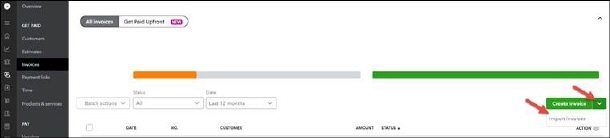
3. Next, go to QuickBooks > Get paid & Pay > Invoices. Click on the drop down to the eight of “Create Invoice” and choose the option “Import Invoices.”
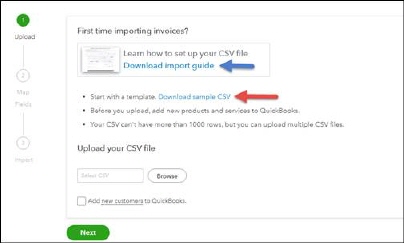
4. Download the CSV document to create the spreadsheet for import. Data from the MSWhse excel spreadsheet will be copy and pasted into the QuickBooks CSV spreadsheet, indicated by the red arrow.
The QuickBooks Import process has an import guide available for download if you have questions regarding the details required in the Quickbooks CSV spreadsheet, indicated by the blue arrow.
5. Next, copy the required (and optional) data from the MSWhse excel spreadsheet into the CSV spreadsheet, which corresponds to the correct column.
|
QuickBooks CSV |
MSWhse Excel |
|
Invoice No. ** |
Invoice No (Column C) |
|
Customer ** |
Company Name (Column A) |
|
Invoice Date ** |
Invoice Date (Column D) |
|
Due Date ** |
The Companies Required due date of the invoices based on the invoice date. (Manually generated) |
|
Terms |
|
|
Location |
|
|
Memo |
|
|
Item (Product/Service) |
This will be the Item (Product/Service) you wish for this line Item to be assigned this amount on this invoice number. A list of these can be located by going to the Gear button, click on All lists, then choose Products and Services. Copy and paste the corresponding Product and service to the line items. |
|
Item Description |
Transaction Number (Column I) We recommend adding “Transaction Number” to the details |
|
Item Quantity |
|
|
Item Rate |
|
|
Item Amount ** |
Amount (Column F) |
|
Service Date |
Date (Column J) |
6. Save the CSV document.
7. Navigate back to your QuickBooks screen and click the Browse button. Locate the recently saved CSV and click Open.
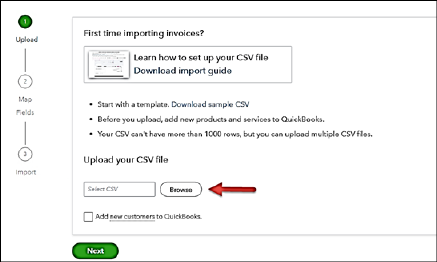
8. Click Next.
9. Map your column headings to the areas you would like the data to go to. (The default data seems to be correct.)
10. Click Next.
11. You should then receive a message stating “You’re good to go. # new invoices will be imported.”
12. Click Complete import.
13. You should then receive a message stating “Nicely done X out of X invoice(s) were imported.
14. To confirm all invoices were populated, navigate to Customers Tab > click on the desired customer, and view the invoice number and dollar amount imported.