MoversSuite Administration > QuickBooks > QuickBooks Setup
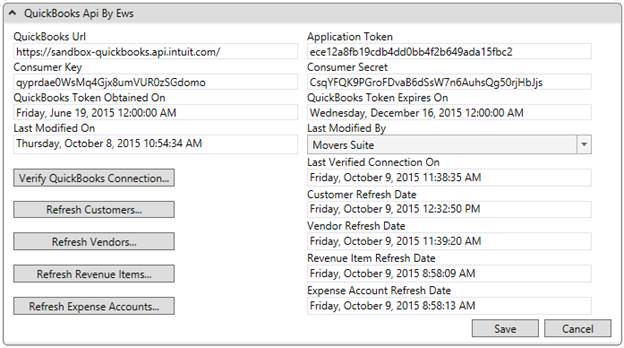
Use this setup to define the connection credentials needed to interface with your QuickBooks Online Accounting system from the MoversSuite application.
Figure 4: QuickBooks Setup
|
IMPORTANT |
|
Credentials, including a CompanID and AppName, must be established on your system along with having the QuickBooks Api module enabled prior to attempting to connect to QuickBooks. QuickBooks Api is a RESTful service that handles connections to QuickBooks and processes the token verification. Contact MoversSuite Support Team for more information. |
Also, since MoversSuite stores certain data locally to make the integration function successfully during loss of Internet access, use this setup to refresh customers, vendors, revenue items, and expenses as well, especially if changes have been made to these areas within QuickBooks.
|
Field |
Description |
|
QuickBooks Url |
Fully-qualified URL location of the QuickBooks application, e.g. https://company-id-quickbooks.api.intuit.com/ (up to 255 characters). |
|
Application Token |
Provide the validation identifier to access QuickBooks for your account (up to 64 characters). This token expires on a periodic basis and must be renewed. Refer to the QuickBooks Token fields below for date information regarding the expiration of this token. |
|
Consumer Key |
Provide the two validation identifiers required to access your particular QuickBooks account (each is up to 64 characters). |
|
Consumer Secret | |
|
QuickBooks Token Obtained On |
Displays the date and time that the Application Token was established. |
|
QuickBooks Token Expires On |
Displays the date and time the Application Token is scheduled to expire. Once expired, you will need to obtain a new token from QuickBooks. |
|
Last Modified On |
Displayed in these two fields is the date and time that the information in this setup was updated along with the user that updated it. |
|
Last Modified By | |
|
|
Verify QuickBooks Connection This function sends the access credentials to QuickBooks for verification. A confirmation dialog is returned indicating whether the credentials work or failed to make a connection. If an error is returned, verify that the above tokens and keys are valid. |
|
Last Verified Connection On |
Displays the date and time that the Verify QuickBooks Connection was successful. |
|
|
Refresh Customers This function pulls in the latest customer list from QuickBooks into MoversSuite, i.e. syncs the Customers list in MoversSuite with those from QuickBooks. Perform this function if you know that changes have been made to the customers in QuickBooks and you want them reflected in MoversSuite. |
|
Customer Refresh Date |
This field displays the date and time that the customers were refreshed. |
|
|
Refresh Vendors This function pulls in the latest vendors from QuickBooks into MoversSuite, i.e. syncs the Vendors list in MoversSuite with those from QuickBooks. Perform this function if you know that changes have been made to the vendors in QuickBooks and you want them reflected in MoversSuite. |
|
Vendor Refresh Date |
This field displays the date and time that the vendors were refreshed. |
|
|
Refresh Revenue Items This function pulls in the latest revenue items from QuickBooks into MoversSuite, i.e. syncs the Products and Services list in MoversSuite with those from QuickBooks. Perform this function if you know that changes have been made to the revenue items in QuickBooks and you want them reflected in MoversSuite. Revenue Items link to MoversSuite item codes through QuickBooks Item Mapping Setup. |
|
Revenue Item Refresh Date |
This field displays the date and time that the revenue items were refreshed. |
|
|
Refresh Expense Accounts This function pulls in the latest expense accounts from your QuickBooks’ Chart of Accounts into MoversSuite. Perform this function if you know that changes have been made to the expense accounts in QuickBooks and you want them reflected in MoversSuite. The application downloads into MoversSuite those Chart of Accounts records from QuickBooks that are a Type of Expense. |
|
Expense Account Refresh Date |
This field displays the date and time that the expense accounts were refreshed. |
|
|
Save Press this button to save any changes made to this setup. |
|
|
Cancel Rejects all changes made to this screen. |






