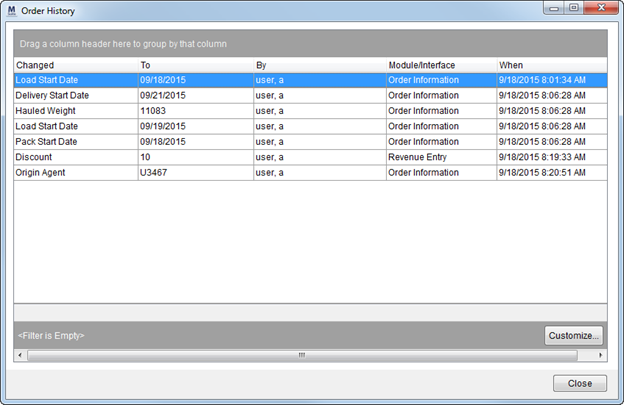
Available through the Tools Menu, the Order History screen keeps track of changes made to several key fields on an order.
Figure 60: Order History screen
The screen features a Full-Function Data Grids, allowing you to sort, group, filter, export, and more.
The following table describes the fields and functions available within this screen.
|
Field/Function |
Description |
|
Changed |
This column displays the name of the field that changed. Refer to the Order History Fields topic for a complete listing. |
|
To |
The new value assigned to the changed field displays in this column. |
|
By |
Name of the user or process that made the change. |
|
Module/Interface |
This column displays the place where the change occurred. The name of the MoversSuite module or external interface displays in this column. Module names include “Order Information” and “Revenue Entry.” If the change occurred through an interface, then the name associated to a process set for the XML System Data Type Map within XML System Setup displays. |
|
When |
The date and time of the change display in this column. |
|
|
Close (Alt+C) Press this button to close the Order History screen. |
Refer to Order History Fields for a list of fields that are tracked and recorded to the Order History screen when changes are made.
