STEP
DESCRIPTION
Before you begin…
Required for this process is a general understanding of the MoversSuite queuing process and access to the queue log files. This process is specifically designed to solve the exception of “Insufficient resources to perform operation” error.
1.
Verify the error
With the error log open, confirm that queue ended with a MessageQueueException of “Insufficient resources to perform operation” error.
2.
Open Computer Management
Open the Computer Management screen (available through the Windows Start menu by right-clicking on My Computer and selecting Manage).
3.
Access the queues
Open the Services and Applications > Message Queuing > Private Queues folder.
4.
Open the error logs
Open each queue folder beginning with “mss_” and ending with “_error”.
5.
Purge each message
Right-click on each Queue messages file within each queue folder and select All Tasks > Purge.
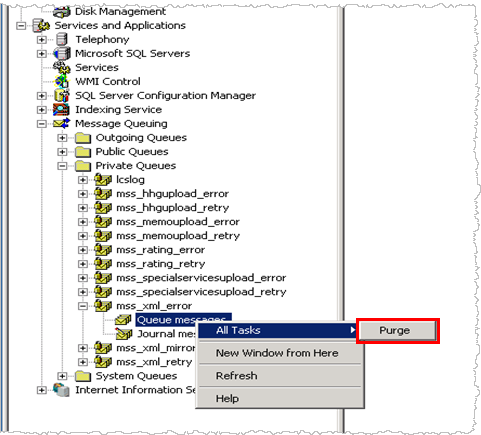
Figure 1: Computer Management screen
6.
Purge the mirror message
Right-click the “mss_xml_mirror” queue folder and select All Tasks > Purge.