A user will need to establish the main order based on the primary location of the O&I Move. This order can originate from within any MoversSuite module, including Order Information, International, or Special Services. Once established, then a user can create sub-orders to record services and record revenue.
Creating the primary O&I Move order
1. In MoversSuite,
2. Select an order type from the Contents screen, such as Order Information, and the application will open the Name, Address, Phone tab within the corresponding module,
3. Create a new Order by pressing the New button and selecting Order and the Select a Branch dialog will appear,
4. Select a Branch To Use from the available list,
5. Enter Name, Address, Phone tab data as needed. It is recommended that the primary move locations be entered as the Moving From and Moving To addresses,
6. Open the Move Information tab,
7. Select a Type of Move of “O&I Main”,
8. Enter other data as needed in all tabs,
9. Press Save to keep the changes and to add the Order to the database,
10. Press Book Order and the Book Order Information confirmation dialog will appear,
11. Press Save and the dialog will close and an Order Number will be listed within the Information Bar.
Once the primary order has been established and booked, a user can create any number of duplicate orders underneath it. These duplicate orders will be the sub-orders that a user can add services, post revenue, etc. for the entire O&I Move.
Creating an O&I Move sub-order
1. In MoversSuite,
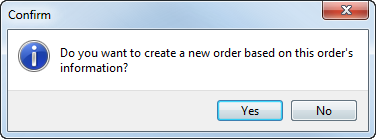
2. With the main O&I Move opened (use Find to located, if necessary), create a duplicate order by pressing the New button and selecting Duplicate Order. The Confirm dialog will appear,
Figure 50: Duplicate order confirmation dialog
3. Press Yes to the “Do you want to create a new order based on this order’s information?” prompt and the user will be presented with a filled-in order without a defined Order Number,
4. Open the Move Information tab,
5. Select a Type of Move of “O&I Sub” from the available list,
6. Update and add data within any tab as needed. Enter Containers, packing and unpacking information through Update Containers, Packing and Unpacking, for example,
7. Press Save to add the record to the database,
8. Press the Book Order button and the Unique Order Number dialog will appear,
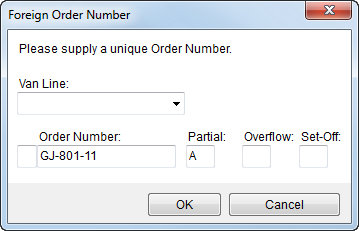
Figure 51: Unique Order Number dialog
9. Enter the same Order Number as that of the main Order and a Partial, Overflow, or Set-Off segment value as a unique character. The character sequence used can be alpha or numeric or both. It is recommended that it be alpha to accommodate up to 26 characters, Avoid using special characters for the segment,
Tip:
To see which segment codes are in use, either use Find by searching for the primary Order Number or by executing and viewing the OI Order Inquiry report using the main Order for the Primary Order Number. This report will list all sub-orders currently defined within MoversSuite.
10. Enter data, as needed, in the remaining tabs, such as adding Local Services, Special Instructions, Agents, Directions, etc. Tasks and Notes can be completed for all O&I Move orders and sub-orders. If a Note applies to all orders, then it will need to be entered on each sub-order,
11. Press Save to keep all changes.
Once the O&I Move main and sub-orders have been established, a user can process service requests and post revenue to all the sub-order records. All dispatching functions will apply to only the sub-orders, as well.
RELATED TOPIC:
Containers, Packing and Unpacking
(CPU)