 ).
).
Users can customize the columns that appear and the order in
which they appear and the data arrangements made within a grid through the
Column Selector ().
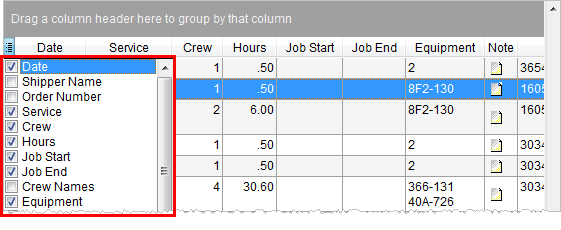
Figure 15: Column Selector
Choose which columns appear in a data grid by selecting them
( ) through the Column Selector.
Users can rearrange columns to their liking through the Column Selector menu or directly through the data grid. To move a column, click on the column title while holding the mouse down and releasing the column in the desired location; the application will display guide marks to illustrate where the column will insert once the user releases mouse.
The example below illustrates placing the Date column before the Service column.
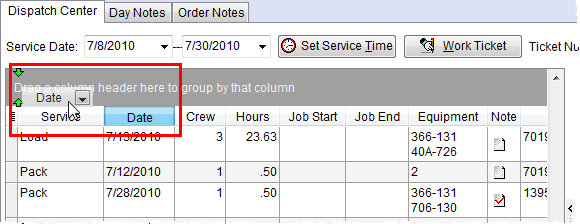
Figure 16: Column move example in Dispatch Center
Users can adjust column width by hovering the mouse near
either end of the column being adjusted until the spread icon ( ) appears, click and hold the spread icon, and
drag the mouse to the desired size.
) appears, click and hold the spread icon, and
drag the mouse to the desired size.
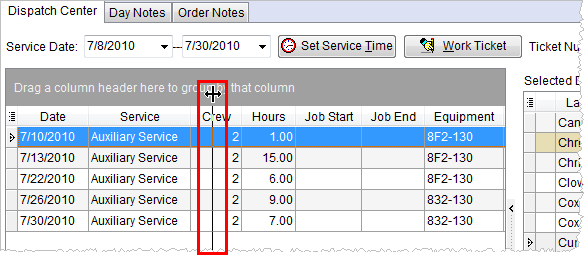
Figure 17: Column adjustment example in Dispatch Center