This topic details information on importing SIRVA Abstract data into MoversSuite Revenue Entry. The following sections provide an overview and then setup information follows the overview.
Overview
MoversSuite brings in an abstract revenue import from SIRVA STS allowing you to bring into Revenue Entry the final revenue on the shipment after it has been abstracted on the SIRVA side.
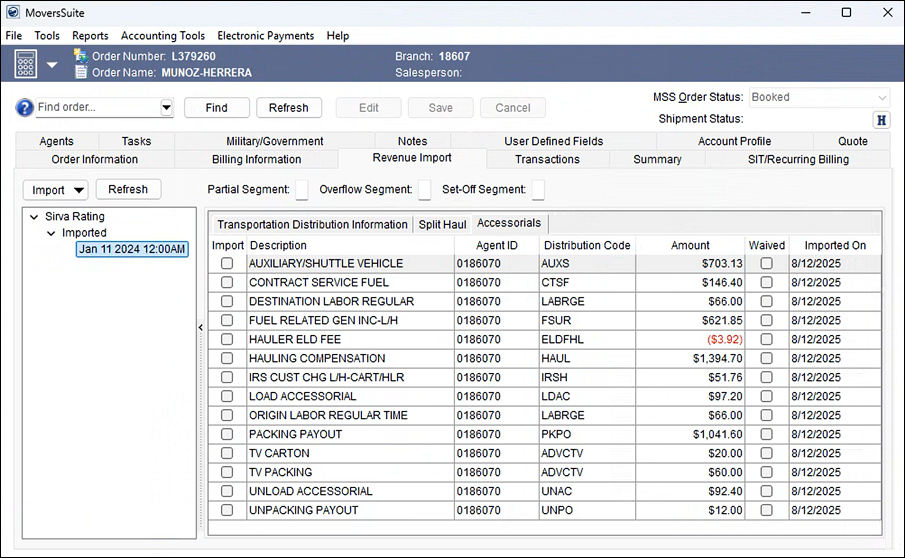
When available from SIRVA, this import shows as “Sirva Rating” under Imported/Not Imported records within the Revenue Import tab. Once imported and transactions have been generated, the revenue can be reconciled with the van line statement from SIRVA within your accounting system.
The following sample displays an imported Sirva Rating through Revenue Entry.
Figure 10: "Sirva Rating" is listed within Revenue Import
Once imported, the details show within the Transactions tab. Generated transactions are sent to your accounting system.
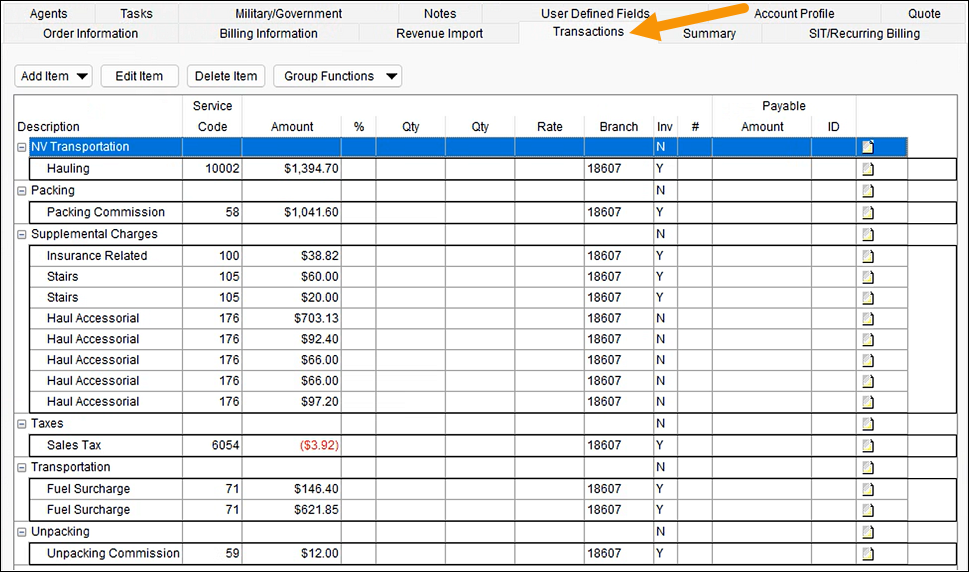
Figure 11: Imported items shown within the Transactions tab.
Setup
These instructions assume that your MoversSuite is already set up and referencing Sirva Agent Statement Imports, a.k.a., “Cloud Statements.” If not, then contact the EWS Group Support Team by sending an email to support@ewsgroup.com. Please include your Sirva agent’s numbers requesting that you would like the Cloud Statement and abstracted revenue turned on.
The following sections detail the steps to enable the Sirva Abstract Rating along with optional steps to support switching to new Service Codes supported by Sirva.
Enable the Sirva Rating option
In MoversSuite Administration under XML System Setup, locate the “Sirva STS” record and open it for editing.
Define an XML System Data Type Map record with a Name of “Sirva Rating” and setting the Xml System Data Type to “Rating”. Errors encountered during the nightly import will show under this named reference in Third Party Application Error Management.

Determine whether to use new Service Codes or old Abstract Codes
Please contact the EWS Group Support Team by sending an email to support@ewsgroup.com to assist you with enabling new codes or using existing codes. An example of a new code for “Hauler Charge – Rule 19” is “HR19”, whereas the old code is “3-1”. EWS Group can enable the new codes for you.