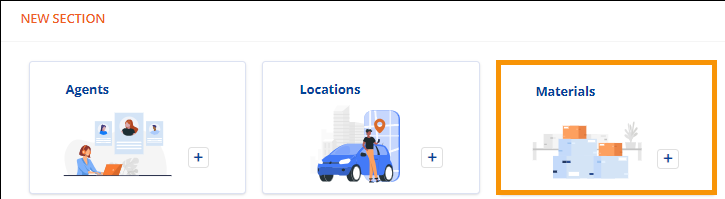
Order Information > Move Information > New Section > Materials tile
If section has been added: Order Information > Move Information > Materials section
Order Information > Local Services > Additional Details > Materials tile
If section has been added: Order Information > Local Services > Materials section
“Materials” can be found within both MSWeb Move Information and MSWeb Local Services. This topic details the use within both locations.
Move Location > Materials:
To add Materials to an order, go to Order Information > Move Location > New Section, and click the “Materials” tile.
Figure 115: New Section > Materials tile
Then enter quantities needed and click Save. Materials will now list under the “Materials” section and the “Materials” tile disappears from the New Section. Quantities entered here show are available to import within Local Services. See the Local Services section below for details.
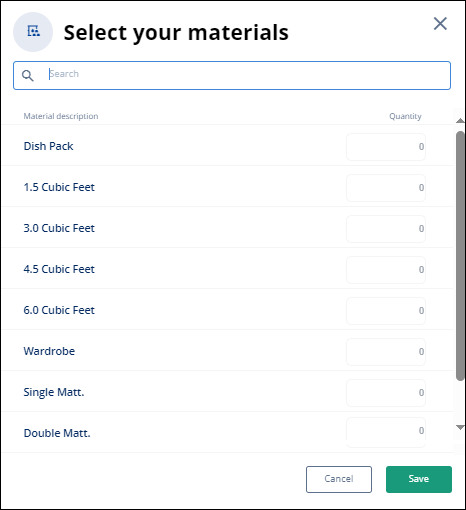
Figure 116: Material selector
To edit within Move Information, to go the Material section and click Update to reopen the materials list. Update quantities and Save. Quantities “updated” will not reflect within Local Services.
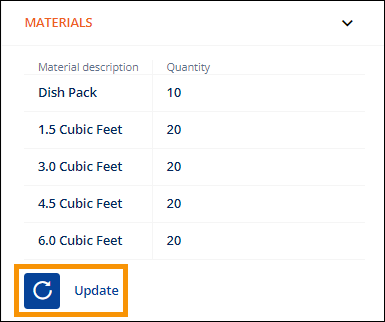
Figure 117: Move Information > Materials
Local Services > Materials:
When entering Materials for a service listed within Local Services, first click on the Service needing Materials. In the example below, notice the service selected shows with a blue background. When clicked, the information on that service lists and the tiles at the bottom of the screen will pertain to that service.
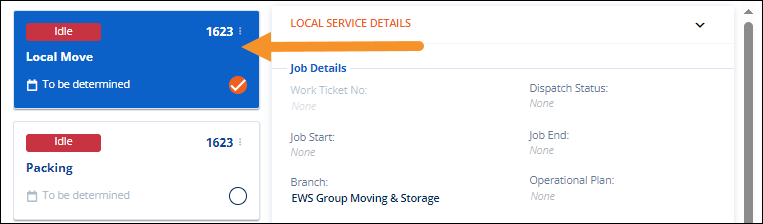
Figure 118: The "Local Move" service is clicked and is active. Materials added will be added to this service.
From Additional Details at the bottom of the screen, click the “Materials” to add materials to that service.
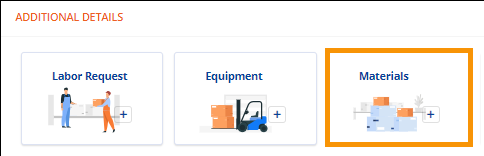
Figure 119: Local Services > Additional Details > Materials
“Import from Orders” references Material quantities entered within Move Information > Materials. If entered within Move Information > Materials, quantities can be imported by selecting “Import from Orders.” See MSWeb Import from Orders for details on that functionality. Of course, quantities can be manually entered, as well. Click Add to save the options.
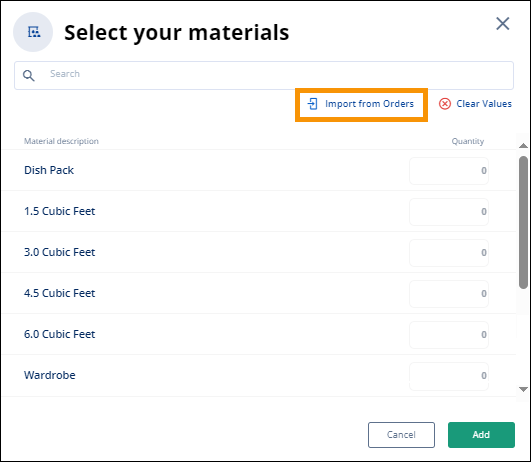
Figure 120: Materials can be imported from order or entered manually.
The quantities now list within the Materials section under that service. The Materials tile is removed from New Section. The tile returns if the quantities are zeroed out