MSCrew automatically caches documents for leads in anticipation of the device being offline, which occurs when the device is out of cell service range or when no Wi-Fi service is available. Cached documents are available to the device, can be signed and annotated, and then saved back to MoversSuite once service is restored.
Leads are prompted each day to cache documents. This brings down physical copy of all order documents available to MSCrew for jobs to which the lead is associated for the current day and the three prior days. In other words, the caching downloads documents for a four-day spread ending with the current day.
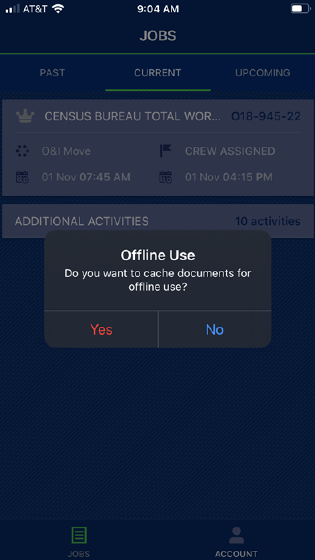
Figure 24: Offline Use prompt on Jobs screen
The request to cache automatically appears if the device is online. The prompt shows immediately after logging in. Pressing Yes triggers the document caching, which can be cancelled. Documents will not be cached if No is pressed. The lead can manually cache documents individually through the MSCrew Documents Screen.
The caching process provides an indicator appears at the top of the MSCrew Jobs Screen. In the example below (), the process is currently on the 9th of 34 documents to cache for this lead.
|
|
Only leads can annotate, sign, or cache documents. |
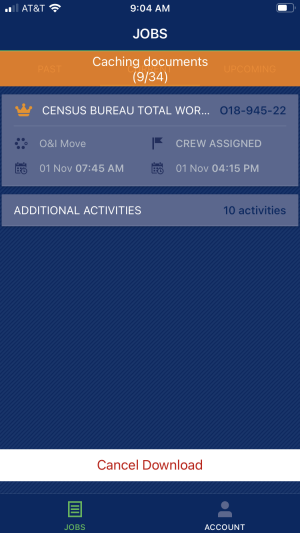
Figure 25: Caching progress indicator
An option to Cancel Download appears within the Jobs screen as well. This will halt the caching. Of note, a lead can continue to work on the device while it is caching, i.e. open and view job details while navigating other screens during the caching.
Cached documents show within the MSCrew Documents Screen with a green cloud icon and documents that are not cached show with a white cloud icon.
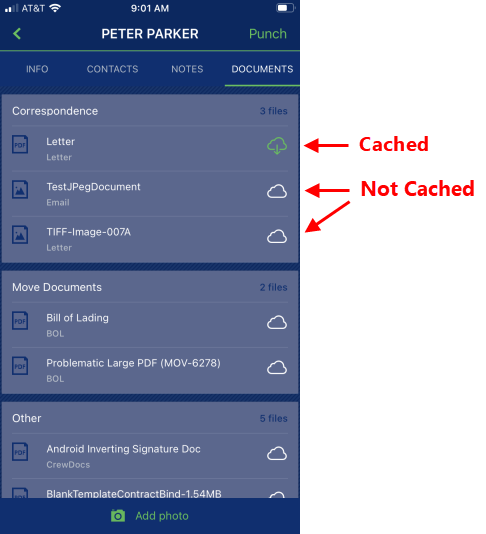
Figure 26: Documents screen
Documents that are not currently cached can be manually cached, i.e. stored locally on the device, by means of opening the document and pressing the green upload icon at the top of the screen.
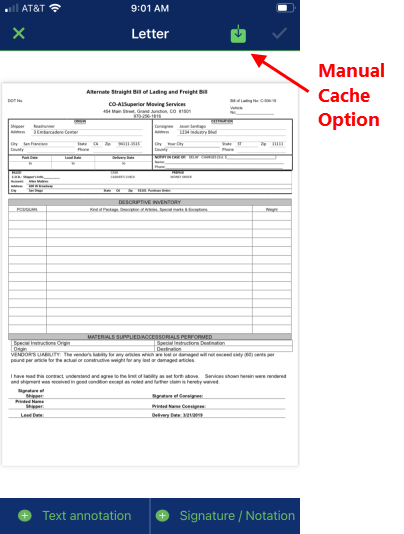
Figure 27: Manual cache option on an open document
A confirmation prompt appears to confirm that the document was uploaded.
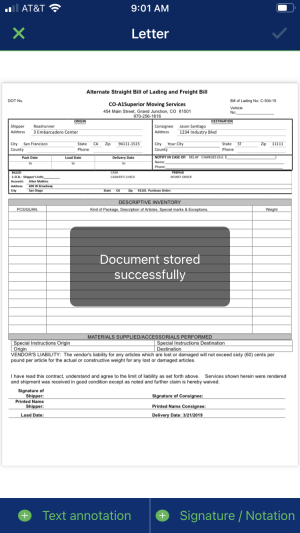
Figure 28: Cached document confirmation
A lead can Delete Cache, which removes all documents stored locally to their device through the MSCrew Account Screen.
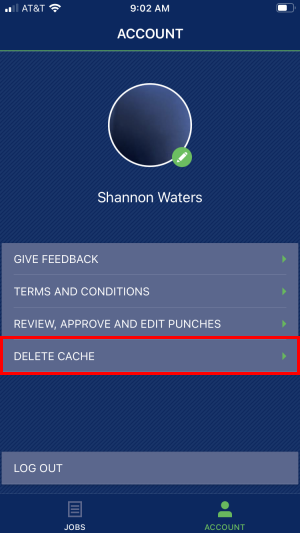
Figure 29: Delete Cache option within the Accounts screen
Leads will be prompted to confirm the deletion and then they will be notified when the cache has been deleted.
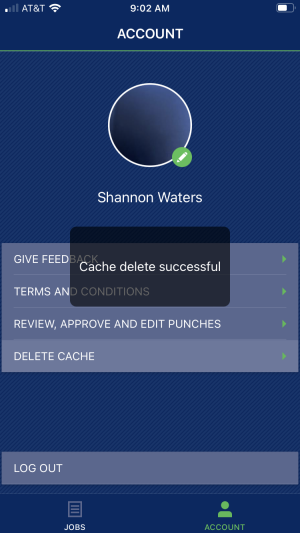
Figure 30: Confirmation prompt after deleting cache
NOTE:
Annotated documents (including signed documents) remain on the local device while the job remains visible to the team. Once the job is no longer available to the device neither are any annotated documents.
RELATED TOPICS:
MSCrew Account Screen
MSCrew Documents Screen
MSCrew Jobs Screen
Summary of Offline Documents Functionality
