MoversSuite > Revenue Entry > SIT/Recurring Billing tab > Recurring Billing section > Billing Items tab
MoversSuite > Order Information > SIT/Recurring Billing tab > Recurring Billing section > Billing Items tab
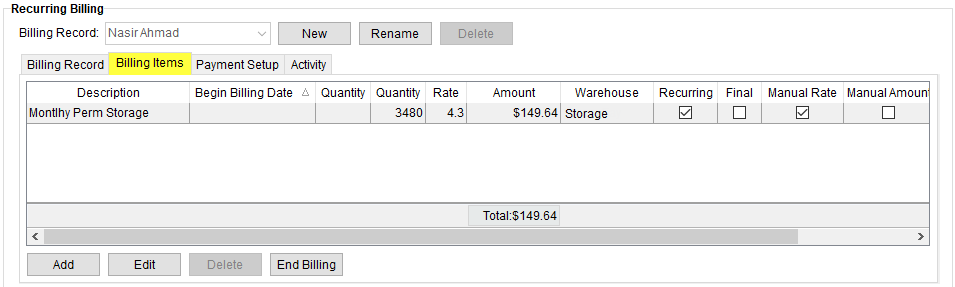
Use the Billing Items tab within a Billing Record to define the individual charges that comprise the billing itemization based on item code, rate type, warehouse, and billing attribute such as setting the item to be a one-time charge or recurring, etc. Items such as warehouse handling, utilities, and access charges can be included in the total charge amount.
A total for the Amount column displays the dollar amount of all active, non-finalized items.
Figure 7: Billing Items tab
To add a new Billing Item:
1. Click Add to open the Add Billing Item screen.
2. Complete the screen using the condensed information in the table below (which has the fields for the Add Billing Item screen) to assist you. Go to Add Billing Item for more details on those fields, if needed.
3. Click Save on the Add Billing Item screen. When saved, the Billing Item lists on this tab.
To edit a Billing Item:
1. Click on a Billing Item to highlight that item.
2. Click Edit. This opens the Edit Billing Item screen to edit as needed.( For details on the fields on this screen, see Add Billing Item.)
3. Click Save to save the changes.
To stop the billing of a Billing Item:
1. Click on a Billing Item to highlight that item.
2. Click End Billing. For other options on how to end recurring billing, see Ending Recurring Billing.
The following table describes the general functions available within the Billing Items tab.
|
Function |
Description |
|
|
Add (Alt+A) This function opens the Add Billing Item screen allowing a user to define a new charge for the billing record. |
|
|
Edit (Alt+I) This function opens the Add Billing Item screen in edit mode allowing a user to modify an existing charge item. A user cannot modify an item that has been included in a billing run. View (Alt+V) This function appears when an item has posted transactions against it. Users will be able to view a read-only data within the Add Billing Item screen. |
|
|
Delete (Alt+L) This function removes the selected item after prompting the user to confirm the request. The application will only delete items not included in a billing run. |
|
|
End Billing (Alt+B) This function removes the selected item from being included in any future billing runs, as denoted through the Final flag being set. Users will receive a prompt confirming the request to end billing. For other options to end billing, see Ending Recurring Billing. |
The following table lists the fields available within the Billing Items tab. Additional details on this data is available through Add Billing item.
|
Field |
Description |
|
Description |
Billing description provided for the item. |
|
Begin Billing Date |
Start date of the item displays. |
|
Quantity |
The quantity specified for the billing display in one or both columns. |
|
Rate |
The dollar amount specified to be applied for each quantity billed. |
|
Amount |
The total dollar amount of the billing item as computed as the Rate multiplied by the Quantity value or values. The total amount of all active, non-finalized amounts displays at the bottom of this column. |
|
Warehouse |
The warehouse location associated to the billing item is available. |
|
Recurring |
A checkmark appears in this column if the item is defined to be recurring. |
|
Final |
A checkmark appears in this column if the item has been finalized. See Ending Recurring Billing for more information. |
|
Manual Rate |
A checkmark displays in this column if the user entered a rate value directly for this billing item, i.e., they chose the Enter by hand option for the Rate field within Add Billing Item. |
|
Manual Amount |
A checkmark displays in this column if the user entered a rate value directly for this billing item, i.e., they chose the Enter by hand option for the Total Amount or Total Monthly field within Add Billing Item. |
|
Billed |
A checkmark displays when the item has been included as part of a billing run (see Recurring Billing Management). |
|
AR Branch |
The branch representing the AR branch linked to the order for this billing item display. |
RELATED TOPIC


