NOTE: For details on Electronic Refunds, see Electronic Payment Refund.
This topic details when and how to enter a refund a cash receipt or credit card (negative deposit) within MoversSuite.
Enter a Payment Management > General Payment batch to record the transactions when there is:
•A refunds being issued
•A payment being returned for insufficient funds
•A payment was incorrectly entered for the wrong amount
•A payment was entered in duplicate
Instructions:
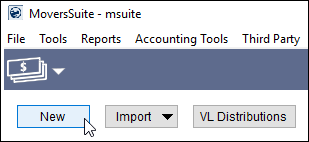
1. Go to Payment Management and click on New.
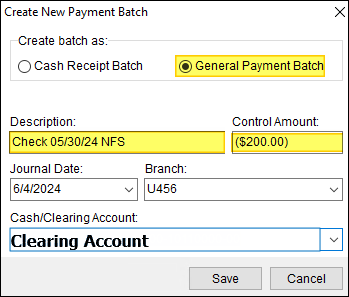
2. Select General Payment Batch.
3. Enter the description, control amount, journal date, branch and select the clearing account to be used.
4. Click Save.
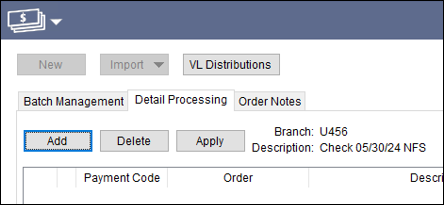
5. Click on Process button or Detail Processing tab.
6. Click on Add. The ‘Add New Payment’ window will open.
7. Enter the branch that the original deposit was posted to.
8. Payment Code will be Receivables.
9. Payment Description will be Returned Check, Refund on Order#, or some other description that will make sense if you need to research this transaction.
10. Payment Amount will be the negative amount of the returned check or refund.
11. You can add the order(s) that the check was applied to by enter the order number(s) in the dark gray bar. Then apply the amount of the returned check in the Unapplied Amount field.
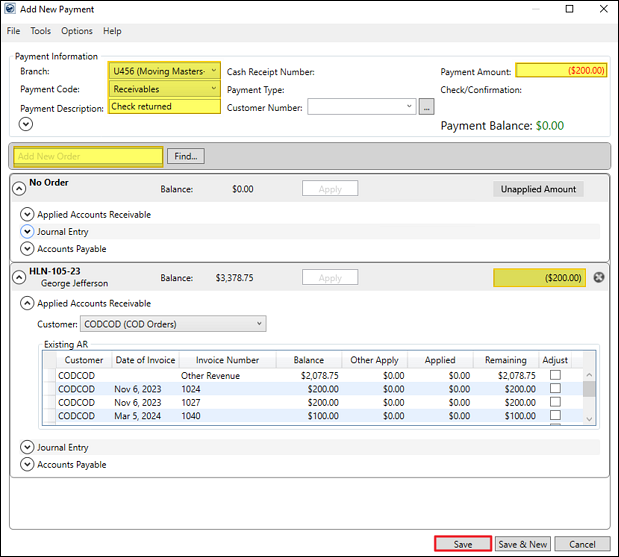
12. Click on Save.
13. Generate Transactions.
14. There will need to be a decreasing adjustment made in GP for the amount of the negative deposit and using the clearing account selected in the Create Batch window.