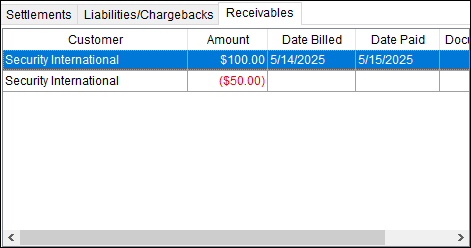
Use the Receivables tab to document the amounts received to satisfy a particular claim item, generally these are insurance payments or van line reimbursements applied to company expense. Enter Receivables so that when the payment comes through, the payment can be applied to the receivable. Access to this tab is through Claim Items.
Click on a Claim Item within the Claim Items tab and then click on the Receivables tab to see if that Claim Item was processed within Receivables.
Figure 35: Receivables tab
TIPS:
•If someone is giving you money, it is a positive number.
Receivables is used when your company is receiving money. An example would be when the van line pays your company to settle a claim. Another example is when your company needs to pay an inspector and the van line is reimbursing your company the fee.
A positive number entered under Receivables will debit AR and credit the claim clearing account.
•If someone is reducing the amount they are paying your company, enter a negative number..
Receivables is used when your Customer is taking money away from your company by short paying, for example. A van line example would be the van line taking away money because your agency dinged a piece of furniture.
A negative number will credit AR and debit the claim clearing account. Entering a negative number may also be needed to balance a receivable
How to enter a Receivable:
1. From the Receivables tab, click Add.
2. From the Receivables screen, enter a Customer Number or a Van Line Account, depending on the receivable.
3. Enter the amount that you are to be paid.
•Enter a positive number is the amount is to be paid to your company.
•Enter a negative number is the amount is to be taken away from your company.
4. Optionally, enter the Date Billed and the Date Paid. It isn’t necessary to set the dates these fields. They are informational only.
5. Click Save.
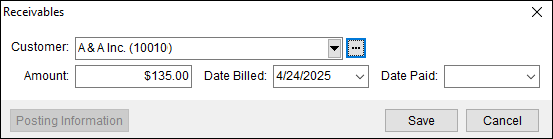
Figure 36: Receivables screen
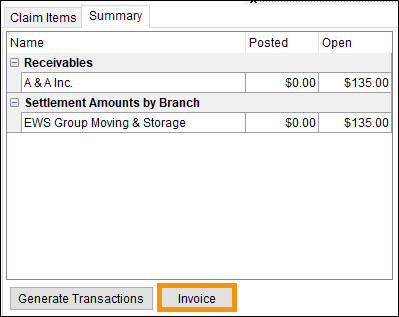
6. From the Summary tab, click the Invoice button to generate the receivable’s invoice.
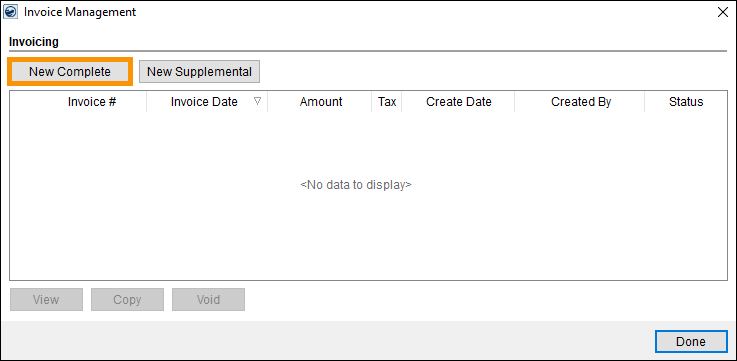
7. From the prompted Invoice Management screen, click the New Complete button to create the new invoice.
8. From the New Complete Invoice screen > Description section, click the Claim Item (#1) and then the double right arrows to move the item over the section on the right. Moving the item puts the item on the invoice.
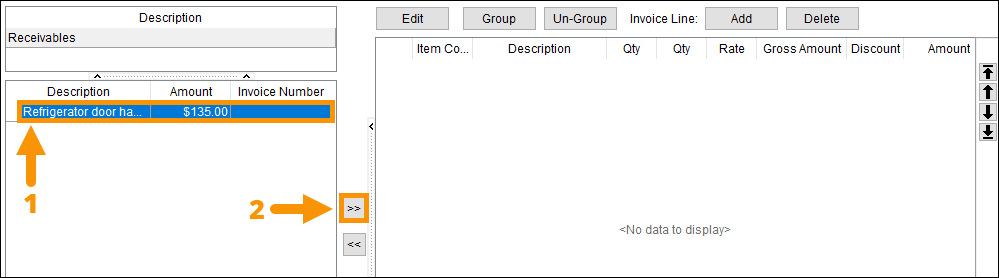
9. Now the item is moved over to the right side, where an item must be included in the invoice.
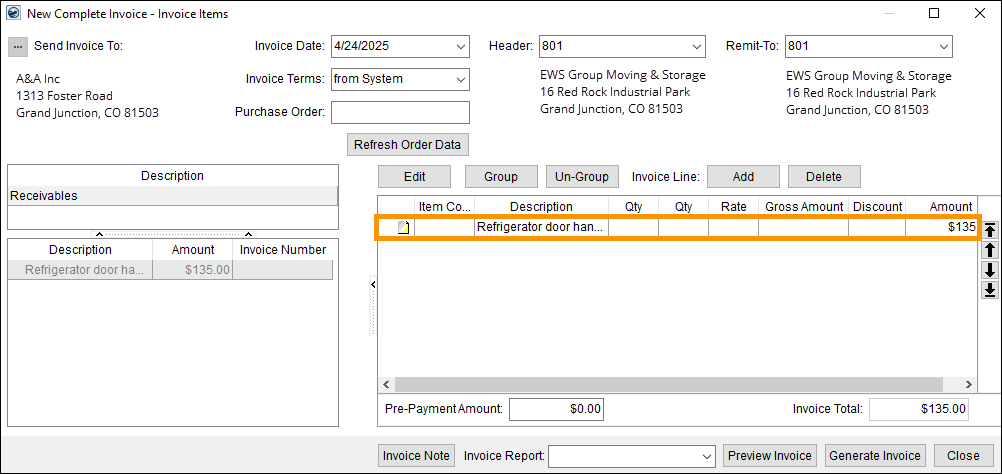
10. At the bottom of the screen, choose an option within the Invoice Report dropdown.

11. Click Preview Invoice and review the invoice.
12. Click Generate Invoice and send the invoice by your company’s preferred method, email, mail, etc. See New Complete Invoice for more details and instructions.
13. Click Close to exit the New Invoice screen.
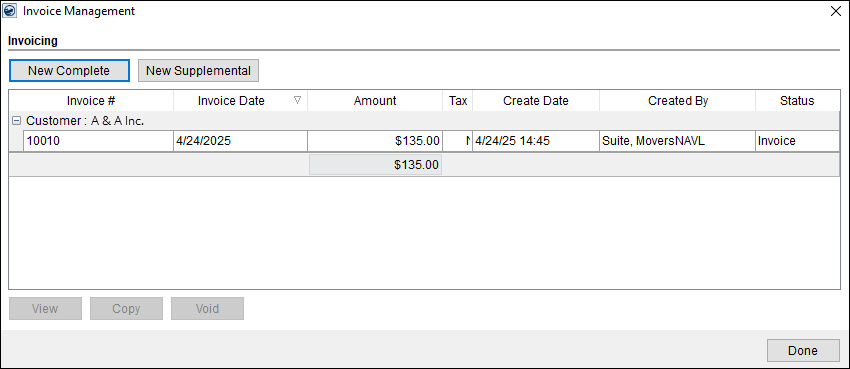
14. Now, the transaction is listed within Invoice Management. Click Done to return to the Claims module.
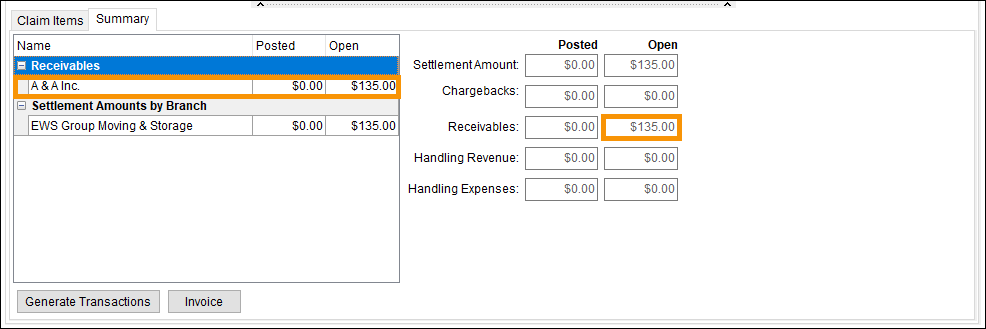
15. Looking at the bottom section of the claim, now the Receivable is listed as being invoiced to A&A Inc. and $135.00 is listed within Receivables > Open.
The following table lists the functions available within this tab.
|
Function |
Description |
|
|
Add Open the Receivables screen allowing the user to define a new receivable record. |
|
|
Edit Open the Receivables screen allowing updates for the selected record. Edits cannot be made once the transactions has been generated. |
|
|
Delete This function removes the selected record after prompting the user to confirm the request. Deletes cannot be made once the transactions has been generated. |
|
Right-Click Option |
Right-Click Option The following option is available through right-click on a record in this grid.
Posting Information This option opens the Posting Information screen for the selected record.
|
Receivables Screen
Use the Receivables screen to document payments due from a customer to settle all or a part of a claim item. The receivable item created will link to the selected Claim Items record. Access this screen through the Add and Edit button within the Receivablestab.
Remember:
•A positive number entered under Receivables will debit AR and credit the claim clearing account.
•A negative number credit AR and debit the claim clearing account.
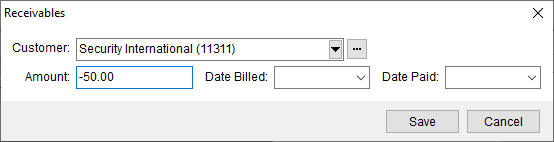
Figure 37: Receivables screen
In the image above, a negative number was entered to help balance the Summary tab Posted/Open balance. A Date Billed and Date Paid was not needed for this instance. See Summary (Claims) for more details.
The following table describes the fields and functions available within this screen.
|
Field/Function |
Description |
|
Customer |
Associate the amount received from an existing customer by selecting a record from the drop-down menu or using the Customer Find.
Note: Create van line claim customer in Microsoft Dynamics GP to assign revenue and chargeback items from a van line as receivables.
Use the Invoice function in Summary (Claims) to generate invoices to responsible parties, a as an agent. |
|
Amount |
Enter the dollar amount received from the customer. |
|
Date Billed |
Enter a bill date for the item. See Date Fields for entry options. |
|
Date Paid |
Document the date the customer paid the item. See Date Fields for entry options. |
|
|
Save (Alt+S) This function saves changes made to the record. |
|
|
Cancel (Alt+C) Discard changes made and close the screen. |




