BI Tool > Settings > Administrator > Users
As an administrator, you will be able to assign access permissions and these permissions are based on Business Categories. Permissions allow or don’t allow viewing and/or editing of reports based on specific Business Categories and Views. Business Categories are the categories available in as options under “Bus.Category” on the Data Sources screen (See BI Tool Data Sources). Administrators also have the ability to assign admin privileges and ability to disable access to the BI Tool.
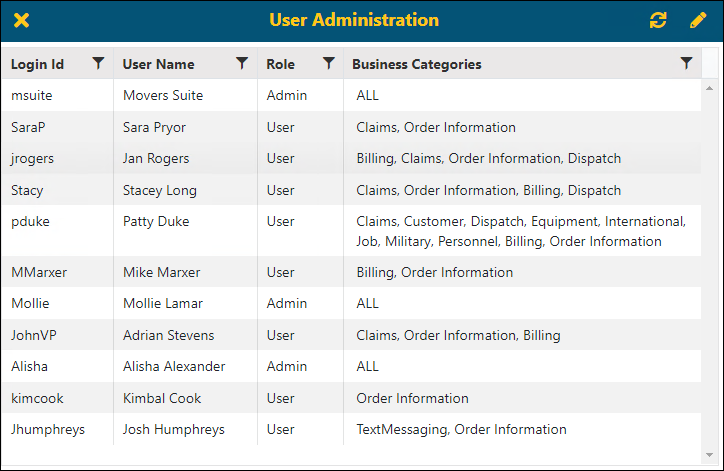
Figure 25: List of Users with access to BI Tool
From this screen, edit a user’s information or access, which are detailed in the following topics:
|
Update |
Reference Topic |
|
Administration Access |
|
|
Disable User |
|
|
Assign Access to Business Categories |
|
|
Assign Access to Report(s) – Read-Only (Has Access) or Is Creator |
The fields and functions are as follows:
|
Field |
Function |
|
Login Id |
Login is what the user will use as their Username during login. |
|
User Name |
User Name is the user’s name as referenced within the BI Tool. To edit the Business Categories or Reports to which a user has access, see BI Tool Assigning Access to Business Categories and/or BI Tool Assigning Access to Reports. |
|
Role |
Role assigns what type of access the user has within the BI Tool – either Administrator or User. When the BI Tool is initially installed, all users will show as Disabled. Update the role for each user role accordingly. Roles are set within EnterpriseBI User Information Setup and EnterpriseBI User Setup. |
|
Business Categories |
Business Categories lists the views that this user has been granted access to, along those change through BI Tool Assigning Access to Business Categories. |
RELATED INFORMATION
BI Tool Assigning Access to Business Categories
BI Tool Assigning Access to Reports
BI Tool Assigning Administrator
BI Tool Disabled