
This section lists the features added to MoversSuite and MoversSuite integrations.
Recurring Billing and Online
Payments
Numerous improvements were made to Online Payments process and functionalities within Recurring Billing.
New functionality has been added to Recurring Billing Management to address some issues that were causing errors, such as:
•“Use Online Payment” was not checked for some/all storage lots (especially when switching payment providers).
•A new Electronic Merchant was not activated after deactivating previous one so no online payment links were generated.
•The preferred order of Electronic Merchants was not updated when switching payment providers so the incorrect one was chosen out of habit.
Improvements made to the Online Payment Links Summary screen to facilitate solution to these issues include:
1. Additional right-click options include (see Figure 1):
•Reprocess This Item: This option allows you to reprocess this item, even if it was processed successfully previously.
•Reprocess All Items, Even the Successful Ones: Allows you to reprocess all items in the grid, even if some/all were processed successfully previously. Though use of this option isn’t common, it is used when switching providers when some step got skipped along the way.
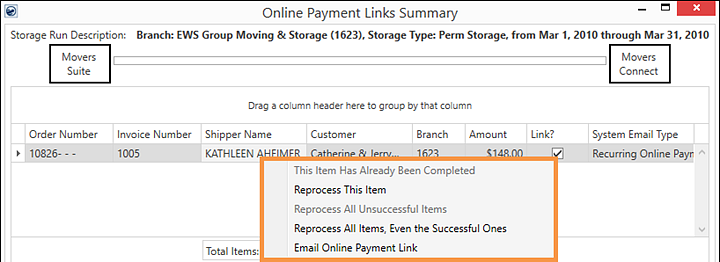
Figure 1: Additional right click option within Online Payment Links Summary screen.
2. The process for sending the email with the Online Payments Link were updated and are:
• Right-click a transaction and choose “Email Online Payment Link” as shown in Figure 1; or
• Use the View Invoice button (from the Recurring Billing Management screen), click on the appropriate invoices, and click the email icon.
3. Two options within the right click menu were renamed to better reflect their functionality: “This Payment Has Already Been Completed” is now “This Item Has Already Been Completed” and “Reprocess All Unsuccessful Payments” has been renamed “Reprocess All Unsuccessful Items” (Figure 2).
4. Right click menu items are now properly enabled, disabled, visible or invisible when appropriate. Right clicking on an empty grid now says “Sorry, But There Are No Items To Process In This recurring Billing Run”.
5. To see which electronic service payment provider was used for a link, the new columns named “New Link” and “Existing Link” were added to indicate which payment provider is in use on the payment. This is to help users identify the correct Electronic Service merchant when errors or declines exist. Use the scroll bar to scroll to the right to see these new columns.
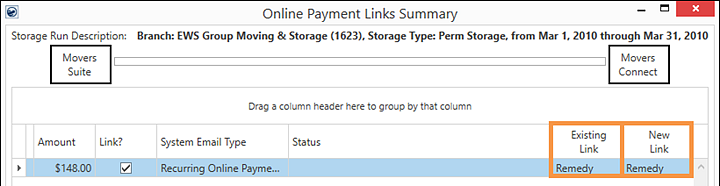
Figure 2: Two new columns within Online Payment Links Summary screen.
6. Additionally, when accessing the Online Payment Links Summary screen through Accounting Tools Menu > Recurring Billing > View Online Payment button (Figure 3), links are no longer automatically generated when the Online Payment Links Summary screen is opened; however, a new notice (Figure 4)appears at the bottom of the Online Payment Links Summary screen informing users how to manually send payment link emails through options detailed in the message.
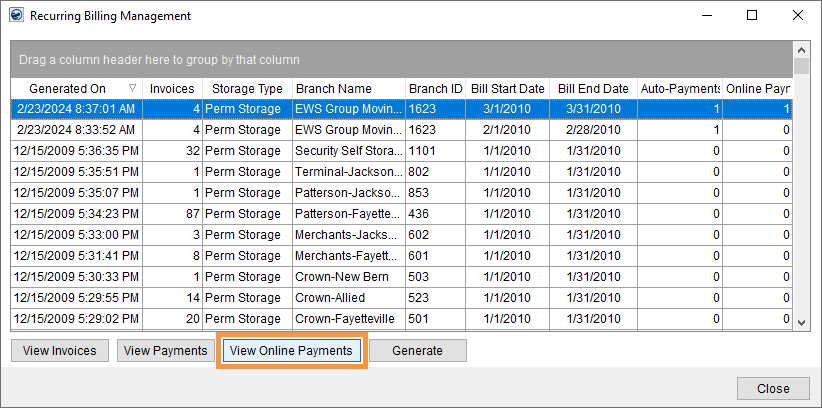
Figure 3: View Online Payments button within Recurring Billing Management screen.

Figure 4: New information message with Online Payment Links Summary screen that shows when this screen is manually opened.
INTERNAL REFERENCE: MOV-7086
Local Dispatch

The Save button is enabled only after a change has been made to a service.
Sometimes a user can just be looking at a service within Local Dispatch and instead of clicking Cancel to exit, they accidentally click Save. Clicking Save triggers an email (enabled through Email Options) and, since no changes were made, it was confusing to the email’s recipient. With this enhancement, the Save button within the Edit Local Service dialog is disabled until there are actual changes made. Notice in the image below that the Save button is greyed, which means it is disabled. This way, Save is not accidentally clicked, and an email erroneously sent.

If any edits are made are on the page, the Save button will be enabled. Be sure to click Save only if you wish the edits to be saved. To exit without saving, press Cancel.

Edit Service emails include a “Change Summary” indicating what was set on the service before the change and what change or changes were made to the service.
On the service change email (sent out through Email Options), there is a now a Change Summary. A Change Summary, which includes a list of each change made to the service. This listing includes what item was changed, what it was before the change and after. In the example below (Figure 5), the unit number on the Destination Address was changed from “200” to “330,” along with a few other changes that we highlighted for you.
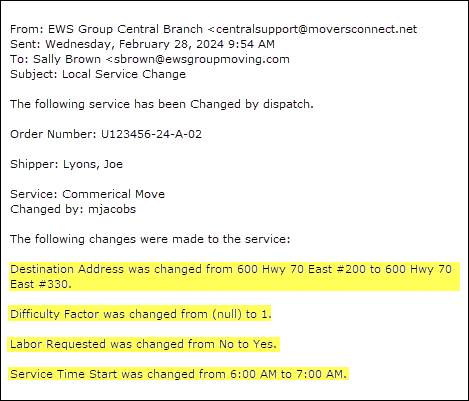
Figure 5: Example of a Change Summary within a Local Service Change Email.
INTERNAL REFERENCE: MOV-6682, MOV-6785
RELATED INFORMATION:
Document Management

The Document Management Viewer now includes manually added documents when sorting.
This bug was causing all manually added documents to automatically list at the top of the listing – ignoring any sort requests. The fix now includes the manually added document to the listing in the correct sort order.
INTERNAL REFERENCE: MOV-7084
Order Status

Order Status values can be marked as Inactive.
Option to inactivate records is available within Order Status Setup. If an Order Status Setup record is marked as Inactive, that status is no longer available as an Order Status selection within MoversSuite (as well as in other administrative setup areas); however, inactive status records will continue to show on previous assignment prior to being marked as Inactive.
See more detail within the Version 2024.06 MoversSuite Administration within the Online Help or the topic within these release notes.
INTERNAL REFERENCE: MOV-2361