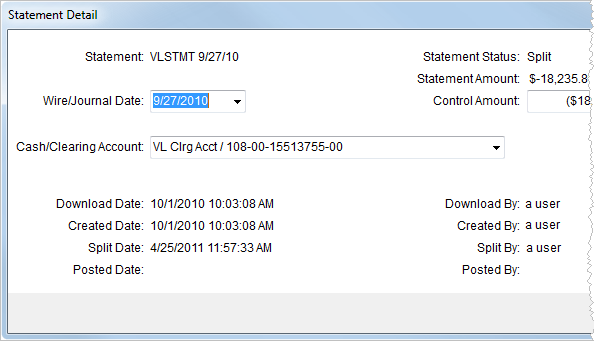
The Statement Detail dialog displays summary information of the statement batch. User can set the following batch level values:
•Wire/Journal Date
•Control Amount
•Cash/Clearing Account
Access the Statement Detail dialog by selecting a record in Batch Management and pressing the Details button.
Figure 8: Statement Detail screen
The following table describes the fields available within the Statement Detail.
|
Field |
Description |
|
Statement |
Displays the name set as the description for the batch record. |
|
Status |
Displays the state the batch is in (see Batch Status for details). |
|
Wire/Journal Date |
Enter actual deposit or transmittal date of the batch funds. Note: This value is visible within the Deposit Date column in Batch Management. |
|
Statement Amount |
This field displays the dollar amount originally set for the batch. |
|
Control Amount |
Enter a dollar amount for the actual amount deposited or transmitted. Note: This value is visible within Batch Management. |
|
Cash/Clearing Account |
Select a master general ledger account from the list defined within Payment Management Posting Account Setup to generate accounting entries under for the batch. |
|
Download Date |
The date and time a batch imported into MoversSuite displays in this field. |
|
Download By |
The MoversSuite user that initiated the import process displays in this field. |
|
Created Date |
The date and time the batch record established in MoversSuite displays in this field. |
|
Created By |
The MoversSuite user that created the batch record displays in this field. |
|
Split Date |
The date and time the batch split in MoversSuite displays in this field. |
|
Split By |
The MoversSuite user that split the batch record displays in this field. |
|
Posted Date |
The date and time the batch posted displays in this field. |
|
Posted By |
The MoversSuite user that generated the posting transactions for the batch displays in this field. |