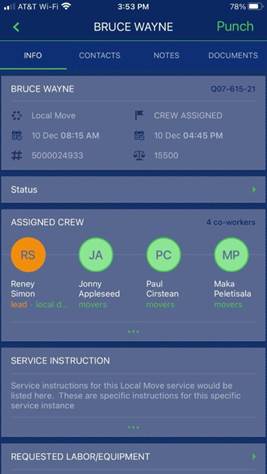
Access to this screen is through the Punch option available from the Info, Contacts, Notes, and Documents screens.
Figure 23: Top right of screen shows PUNCH
After clicking PUNCH, choose the activity.
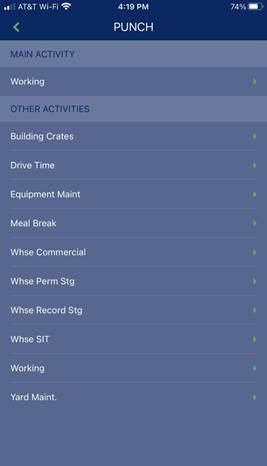
Figure 24: Punch Activity Options
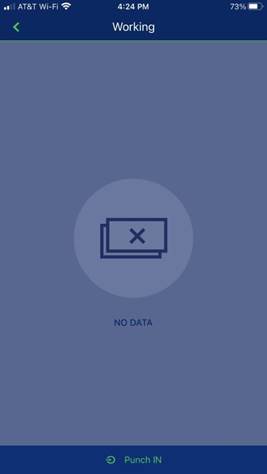
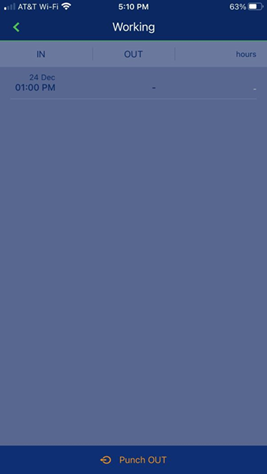
Click Punch In at bottom of screen. If already punched in, the Punch OUT option will appear.
A date and time scroller appear to enter the date and time. Choose AM or PM.
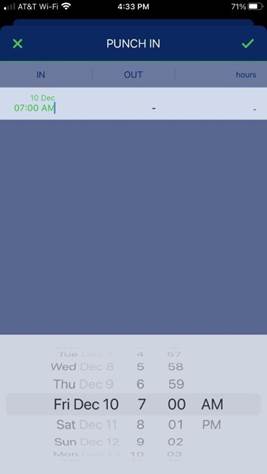
Figure 25: Date and Time Scrolls
One a selection is made, press the green confirmation arrow to accept the punch or press the green X to back out of the punch. If you click the X, a pop-up will allow for a comment to be entered or you can continue without comment.
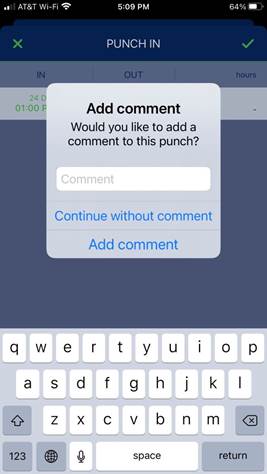
Figure 26: After clicking checkmark, this pop-up appears
When Punched IN, the activity shows the logged time punched in. When Punched OUT, the activity will show both the time logged in and out.
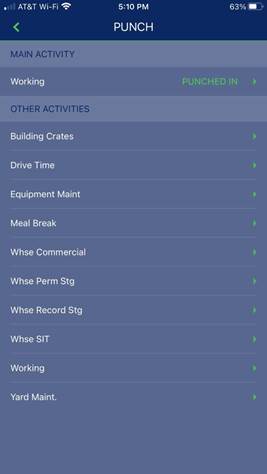
Figure 27: Example of Punch In
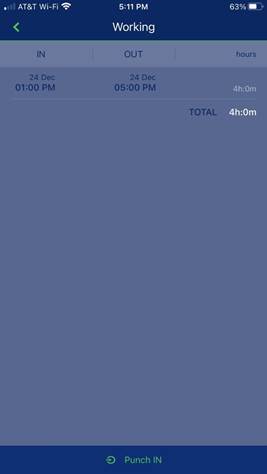
Figure 28: Example of Punch In and Out for Activity
RELATED TOPICS: