This section lists the enhancements made to MoversSuite.
Tasks: Improved Task Processing
Many facets of Tasks have been improved that are listed below and discussed separately in each of the following sections
•Completion of Other Task Improvements
•Manual Tasks Not Being Lost
•New Task Identifiers
•Booking and Re-Booking Effect on Tasks
•Tasks Administration Updates
Completion of Other Task Improvements
The primary fix addressed was to not lose a connection between tasks that are based on the completion of another task. What was happening before is that if you have multiple tasks based upon the Completion of Other Task linked together and if someone manually set a due date, any task after that task was no longer linked to prior tasks.
To illustrate this better, reference the following table. If the Due Date of Task Two is updated manually, then the Due Date of Task Three is set once Task Two is completed, however Task Four is no longer tied to Task Three and the Due Date is not set once Task Three is completed, and so on.
|
Task |
Dependency |
What was happening… |
|
Task One |
Actual Load Date |
Task One is completed, Task Two Due Date is set |
|
Task Two |
Completion of Task One |
Someone manually sets Task Two Due Date |
|
Task Three |
Completion of Task Two |
Task Two is completed, Task Three Due Date is set, however, Task Four is broken and if Task Three is completed, the Due Date of Task Four is not set. |
|
Task Four |
Completion of Task Three |
With this release, if the above scenario occurs, Task Three and Task Four continue to be linked in the chain, i.e. if Task Three is marked as completed, then the Due Date is set accordingly for Task Four.
Further, if a prior task is marked as completed and the due date is set for a subsequent task, then an Undo Completed Task is performed, the due date of the subsequent task is cleared out (because the task it was dependent upon is no longer completed. If the subsequent task is completed itself or marked not applicable, then this subsequent task is not updated and remains either completed or not applicable.
If you select multiple records, then the order of operations based on setup is preserved. Before this release, this was not occurring in a consistent manner.
Manual Tasks Not Being Lost
Manually added tasks are removed when the Task Definition is changed or cleared altogether. Prior to this release, these tasks were mapped behind the scenes to the same definition associated the order. A conversion script will remove these hidden, “lost” tasks from the system.
New Task Identifiers
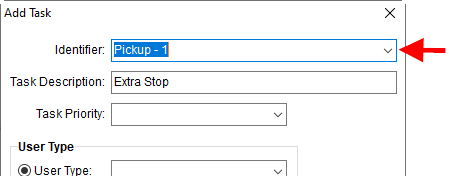
Prior to this release, the Identifier was hardcoded to the Order Number. Now you must select one from a list when adding or copying a task. This allows those tasks to flow logically with similarly group tasks on an order.
Figure 3: Identifier selector in Add Task
For example, if you add a task and choose an Identifier associated to an Extra Stop, then this task is part of the Extra Stop chain on the order. This improves visibility of the task and efficiencies associated to managing the Tasks data behind the scenes.
Further, only appropriate Dependency Date options will be available based on the Identifier. In other words, the list of dependencies is based upon the type you select for the Identifier. In the following example, selecting an Identifier that is for an Extra Stop, you only have dependency options that are appropriate for the type, which in this example are the “Completion of Other Task,” “Extra Stop End Date,” and “Extra Stop Start Date.”
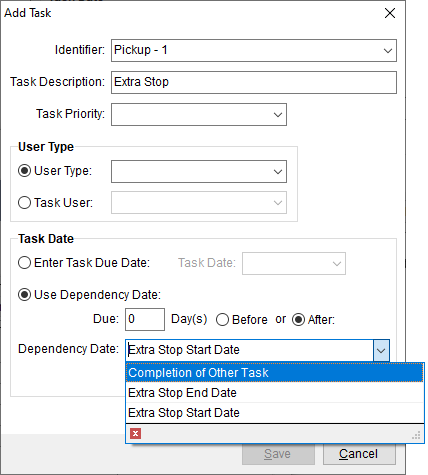
Figure 4: Streamlined Dependency Date selector in Add Task
NOTE: That the application defaults the Identifier to the Order Number on all manually added tasks.
When selecting an Identifier, you can readily discern the Type associated to the Identifier. In the example below, you can see that the first item is an Order Number. The second item is Extra Stop 2 that is a delivery type.
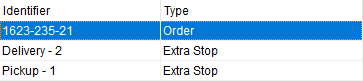
Figure 5: Sample of new Identifiers
The following table lists each type of Identifier available.
|
Type |
Identifier Description |
|
Claim |
Claim Number |
|
Claim Settlement |
Claim Number followed by Settlement Type |
|
Extra Stop |
Stop Type and Stop Number |
|
International Container |
Container Number |
|
Special Services Job |
Job Number |
|
Order |
Order Number |
|
Other IDs |
Unique Identifier specified such the name of the document attached. |
When a task is created based on a Document Received task, the file that it was based on is referenced as the task Identifier. This allows for correct chaining.
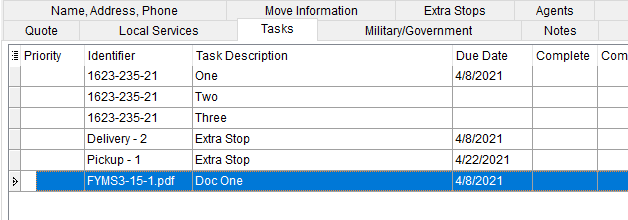
Figure 6: Tasks tab example
NOTE: To view all tasks on an order, including those from Claims and those marked as complete, utilize the Show All option on the bottom of the Tasks tab and Tasks Module.
Identifiers have a length of 64 characters. If this size is exceeded, then MoversSuite truncates the length to fit without error. MoversSuite does make an exception for types associated to document names and those for Claims settlement descriptions. Specifically, the Claims settlement identifier is now formatted as follows and can be up to 128 characters in length.
[CLAIM NUMBER] + “ “ + ([CLAIM SETTLEMENT DESCRIPTION])
Example: “CLM-1234 (Claim Denied)”
If your company utilizes Tasks for Claims and specifically utilize the Claim Settlement Assigned To Vendor Date or Claim Settlement Invoice Date (as Task Dependency Dates), then tasks based on either date show up with the Description set within the Settlement Entry screen. If you wish to delineate these tasks from others on the same claim, then it is suggested to update the description to be a little more unique. In the example below, the second settlement of “Denied” is being added. You can update the Description, such as adding “Again.”
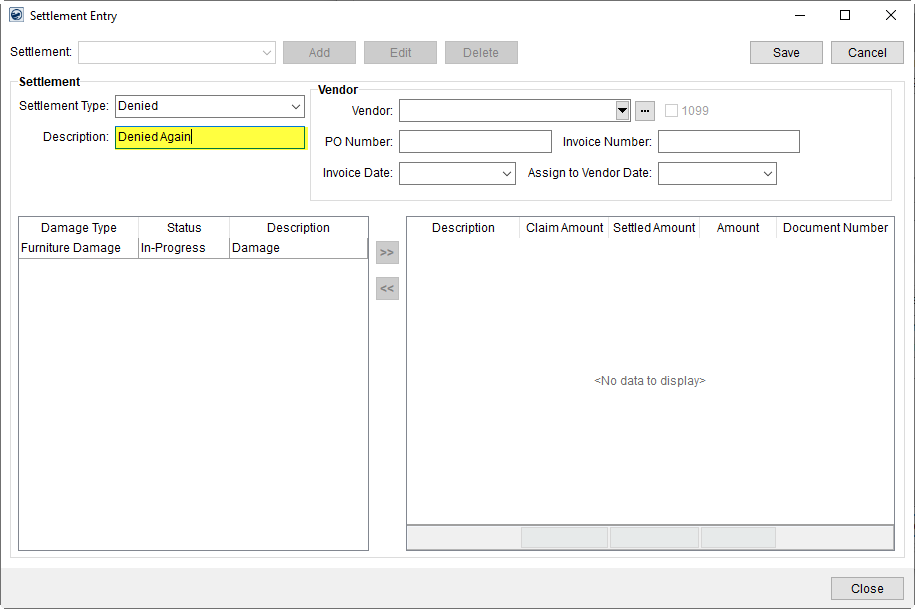
Figure 7: Settlement Entry screen with modified Description setting
Doing something similar to this will help differential between tasks on claims with multiple settlements of the same type.
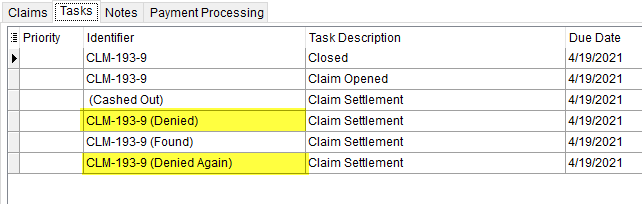
Figure 8: Tasks based on the same settlement type, with one being modified
As a reminder, the default Identifier for a task was the Order Number before you upgraded to this release of MoversSuite. It will still be the primary Identifier going forward and the application will default to the Order Number on on-the-fly tasks. On Claims tasks, the primary and default Identifier is the Claim Number.
Booking and Re-Booking Effect on Tasks
When an order is booked or re-booked, we only update the order-level tasks. Prior to this release, if you rebooked the order, the new Order Number affected all tasks, causing inappropriate identifiers (sub types), which may have caused issues when these tasks were copied. All task identifiers are now updated correctly.
Related to this is booking and rebooking of archived orders. It was identified during development that you could book and rebook an archived order. This is no longer possible. If you need to book a previously archived order, you now must unarchive it first.
Tasks Administration Updates
One fix is that you can no longer chain dependent tasks in a loop. Example: Task “Two” is based on the completion of Task “One.” You cannot go back and change task One to be based upon the completion of Two. If you attempt this, you will receive a “…is part of a circular loop within your tasks that depend upon each other. This must be corrected” error.
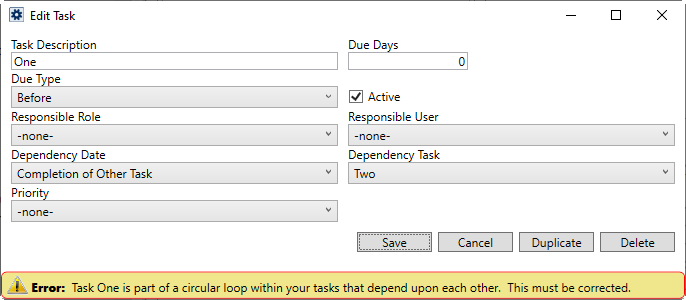
Figure 9: Task setup error example
You now receive a warning if you attempt to have task that is a non-zero number of days before or after one that based upon the completion of another.
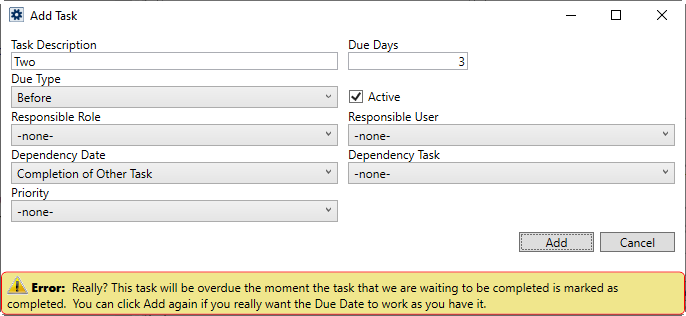
Figure 10: Task setup error example
If you update a “Document Received” document we now clear and remove the Document Type setting. Prior to this fix, we would leave the Document Type attached (behind the scenes) and prevented you from adding a new task for the same Document Type. A conversion script now exists to clean up any unwanted Document Type attachments.
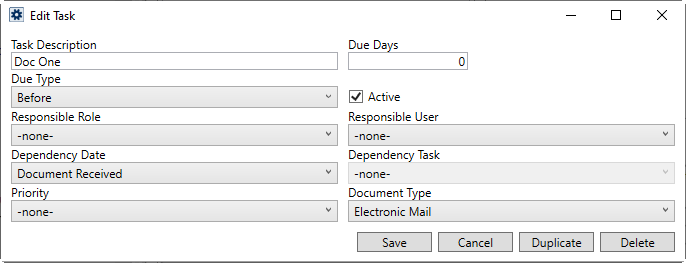
Figure 11: Task example of Document Received type
Refer to the following topics for additional information:
|
SUMMARY (3829, 5804) |
|
Tasks: Improvements to streamline workflows and avoid breaking dependent tasks and creating orphaned tasks. |
|
The following areas have been affected by this change:
|
Find Updated for Office & Industrial Searches
You can now utilize the Find to search by data associated to an Office & Industrial move.
The Find now features an Office & Industrial tab allowing you to set as much data as you need to identify an order record.
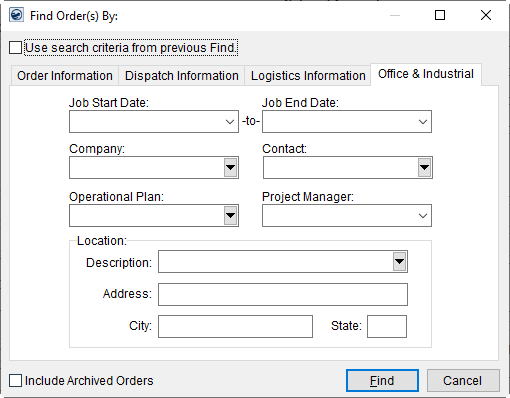
Figure 12: Find dialog
Your search can feature the start and end date of the project, company name, contact or location set on the order and more. Details on each search field are described within the Office & Industrial Search Criteria topic.
The Company, Contact, Operational Plan, Project Manager, and Location Description settings are all Quick Find enabled fields, so if you know what the Company name starts with, you can start typing that name and after three characters the application produces a list of matches.
You can also employ a % character to skip unknown data in all the non-date fields in this tab. For example, if you know the Location Description contains “subway” somewhere in the text, you can enter “%subway” to search for corresponding entries.
The search results grid now displays two new columns to help you locate the correct Office & Industrial order. The O&I Job Start Date and O&I Job End Date are now available in the search results grid.
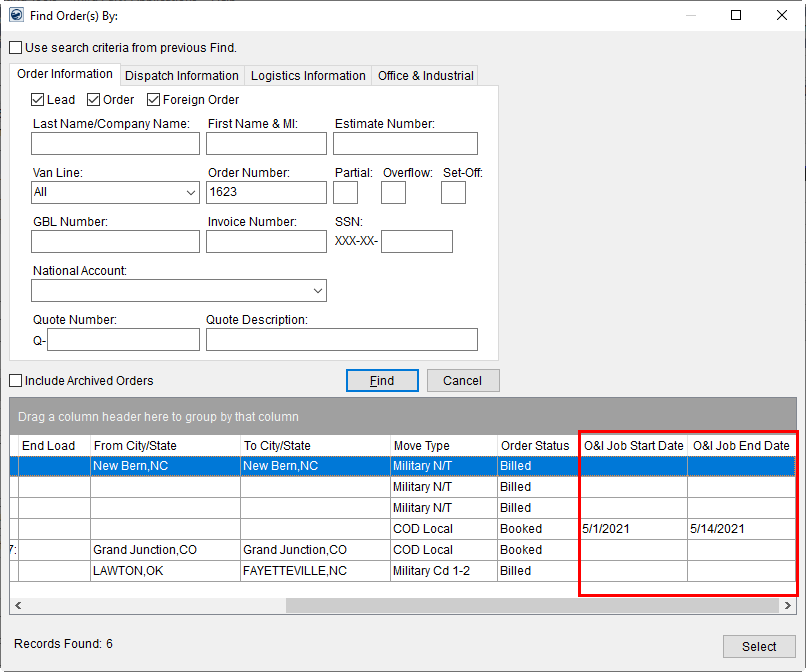
Figure 13: Find with search results
Another improvement made that affects the Find for all types of orders is that when you locate and select a record, the application automatically opens the order in the respective module. So, if you are in Order Information and you search for and find an Office & Industrial order, then the application opens the order in the Office & Industrial module.
Refer to the following topics for additional information:
Office & Industrial Search Criteria
|
SUMMARY (5831) |
|
Find: Allow searching by Office & Industrial order data |
|
The following areas have been affected by this change: Office & Industrial Search Criteria
|