

Watch the Overview Video for this release
This section lists the enhancements made to MoversSuite.
|
|
Watch the Overview Video for this release |
Report Viewer Updates to Improve Performance
The Report Viewer has been updated to utilize a built-in document reader instead of relying on support for Adobe Acrobat or other default reader needing to be loaded on your system. The new reader works the same way as the prior reader did along with all the same features. You should not see a difference when viewing documents through the updated Report Viewer.
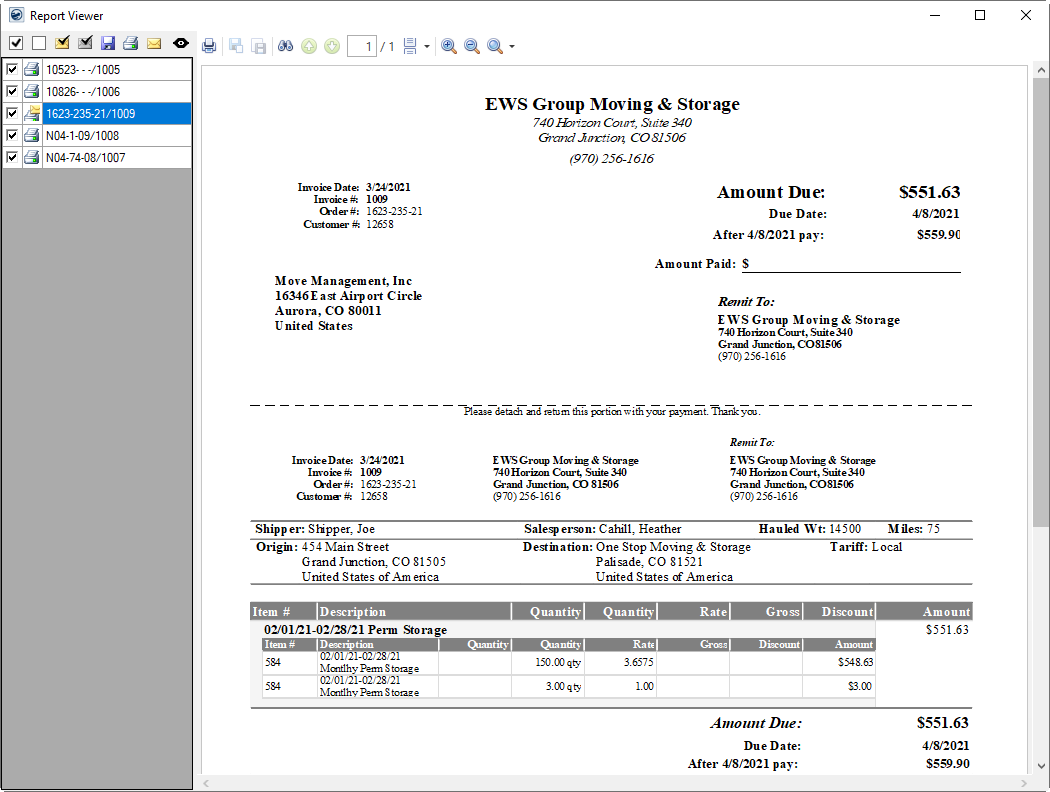
Figure 5: Sample storage invoice in Report Viewer
A new option is available to the Report Viewer that allows you to control how
documents load into the reader pane. The  option displays as part of the report
selection options and allows you to control whether documents load in the viewer
pane or not by default.
option displays as part of the report
selection options and allows you to control whether documents load in the viewer
pane or not by default.
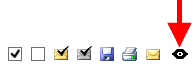
Viewing Document Options:
|
|
View Documents: Selected reports load in the viewer pane. |
|
|
Do Not View Documents: Selected reports do not load in the viewer pane by default. |
If you wish to view just some of the documents without loading all of them, you can:
1.
Deselect the option ( )
)
2. Check just the items you wish to view
3.
Then select the option to load just those selected documents ( )
)
The application stores the option you select when you exist
the viewer. So, if you have the option deselected (), then
the next time you access the Report Viewer the option will be deselected. This
can save you quite a bit of time when managing a lot of invoices during a
storage billing run, for example.
Note that this option is only available when multiple reports are generated. If you are viewing just a single report, then the option is not available.
Refer to the Report Viewer topic for more details.
|
SUMMARY (5842) |
|
Report Viewer: Control added for rendering selective reports. |
|
The following areas have been affected by this change:
|
Customer Statements: Improve Emailing Options
Several improvements have been made to improve emailing Customer Statements.
First off, you now have access to new Report Viewer options
allowing you hide or display statements from loading in the view pane.
Choosing to disable statements from loading can save
time when viewing a large number of documents.
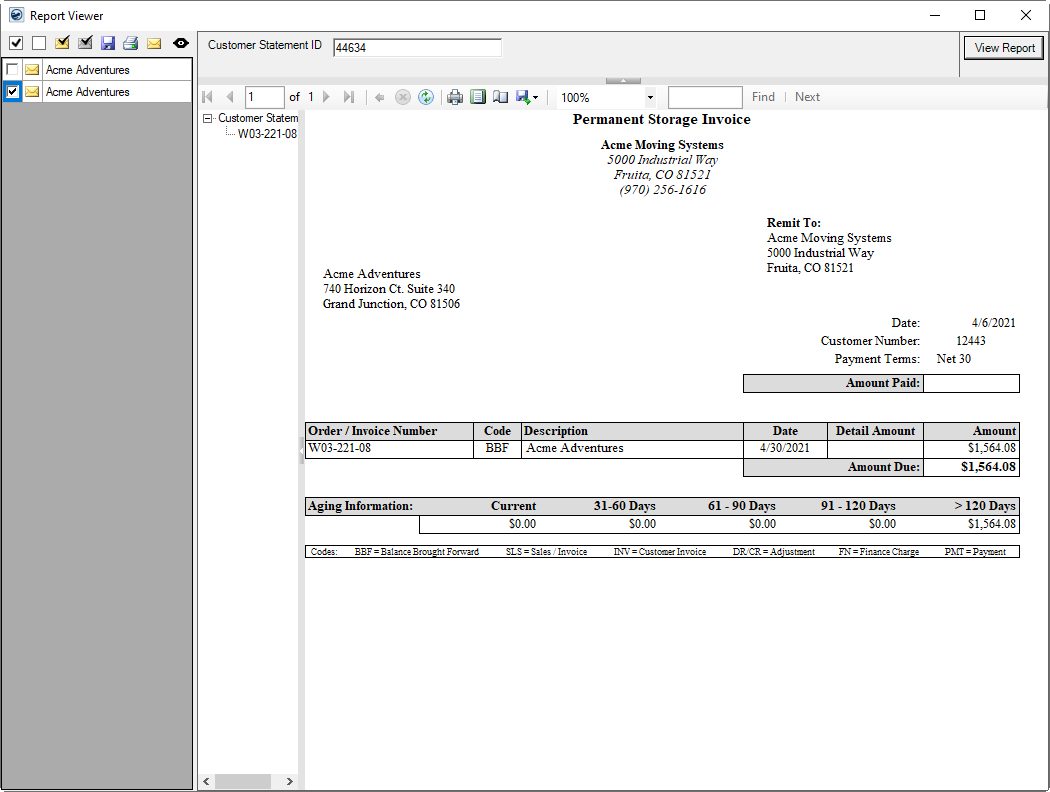
Figure 6: Report Viewer screen
Read the Report Viewer topic for additional information on these options.
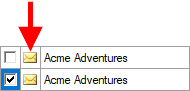
The statement run and reprint options now pull the email address set for the customer within Microsoft Dynamics GP. If the email address is available, then the mail icon shows next to the customer within the selection pane of the Report Viewer.
Reporting options available allow you send one or more emails at a time. If the email address is available to the customer, then it is set as the primary recipient on the statement email.
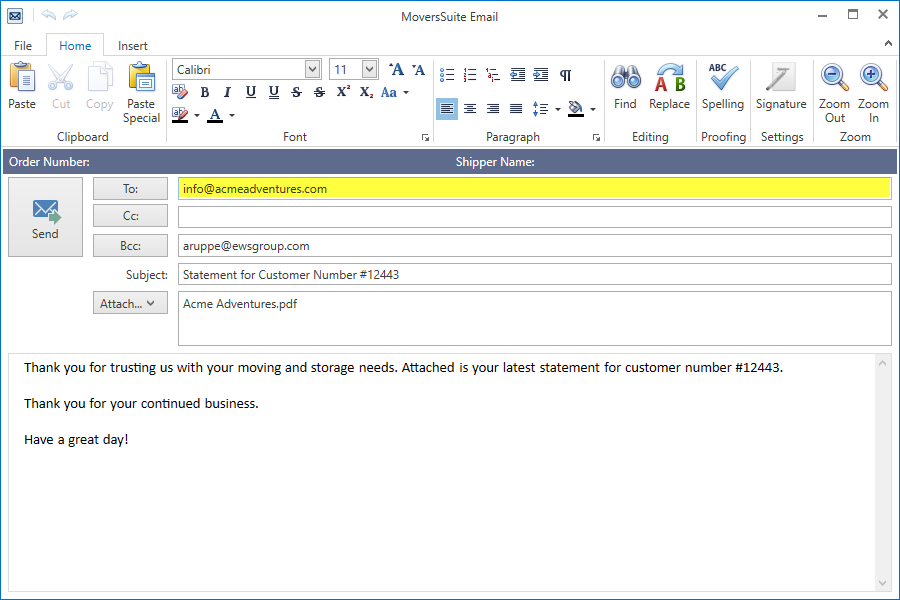
Figure 7: Sample email for a Customer Statement
NOTE: The email address for the customer pulled into Customer Statements is from the “PRIMARY” address record set for the customer in Microsoft Dynamics GP. The entry can be found through Customer Maintenance and then through Internet Information. Set the E-mail to a valid email address of up to 201 characters. You can specify multiple email addresses in the field provided they are separated by a comma or semi-colon.
Your company can now customize the subject and body of the statement email that goes out.
The System Email Setup, which lists under the Accounting and Financial Services category in the Admin Tool, offers you a new Customer Statements option to control what the email looks like. And, you have the ability to include the Customer Balance, Customer Name, and Customer Number within the text of the Subject or Email Message.
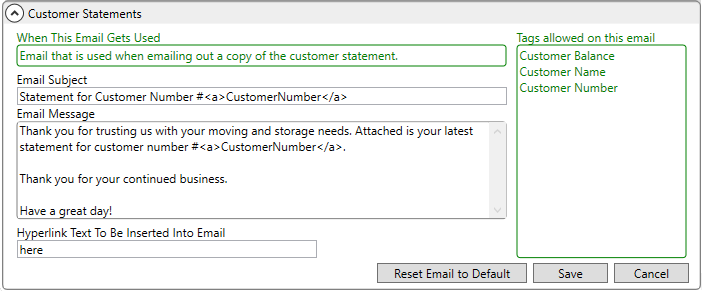
Figure 8: New Customer Statements options within System Email Setup
Refer to the following topics for additional information:
|
SUMMARY (5754) |
|
Customer Statements: Improved emailing options for customers |
|
The following areas have been affected by this change: Schema Changes Version 2021R08
|
Forms Designer: Locations Bookmarks Added
Three new bookmarks are available to reference locations set on a Local Service on an Office & Industrial order.
The following three bookmarks are available under the Local Services category within the Forms Designer Bookmarks listing.
|
Bookmark |
Description |
|
Additional Locations |
This bookmark displays the address for each record selected within the Select Location dialog on a Local Service request through the Office & Industrial module. Data for this bookmark pulls from Locations established within the Contacts and Locations tab and includes the following; Location Description Contact Building Location Type Address |
|
Destination Location |
This bookmark displays the address for the Destination Location set within the Add Local Service on request created within the Office & Industrial module. Data for this bookmark pulls from Locations established within the Contacts and Locations tab and includes the following; Location Description Contact Building Location Type Address |
|
Origin Location |
This bookmark displays the address for the Origin Location set within the Add Local Service on request created within the Office & Industrial module. Data for this bookmark pulls from Locations established within the Contacts and Locations tab and includes the following; Location Description Contact Building Location Type Address |
Each of the above bookmarks displays similar to the following example when rendered:
Location Description: Main Pickup: South Warehouse
Contact: Jeff Lynne
Building: South Warehouse
Location Type: Agent Warehouse
Address:
5700 Warehouse Road
Warehouse, WA 91390
Please note that these three bookmarks only render data from a service managed on an Office & Industrial move. They do work when generated through a Work Ticket form, but again, it must be an Office & Industrial order.
With this release, these three bookmarks are the only ones associated to the Local Services bookmark group, which is available when adding bookmarks to your forms through the Insert Bookmark dialog.
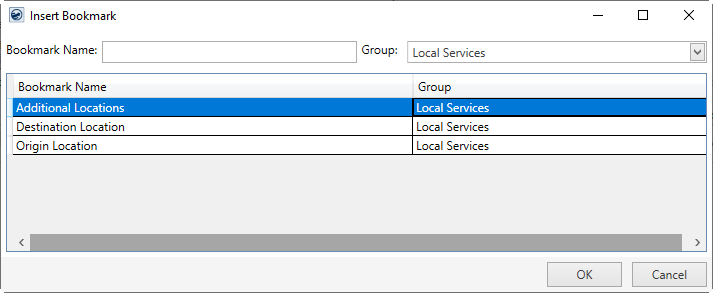
Figure 9: Insert Bookmark dialog
Prior to this release, there were a number of bookmarks attached to the Local Services group. However, these bookmarks truly only worked when rendered through the Work Ticket function, therefore they have been moved to their own group titled Work Tickets.
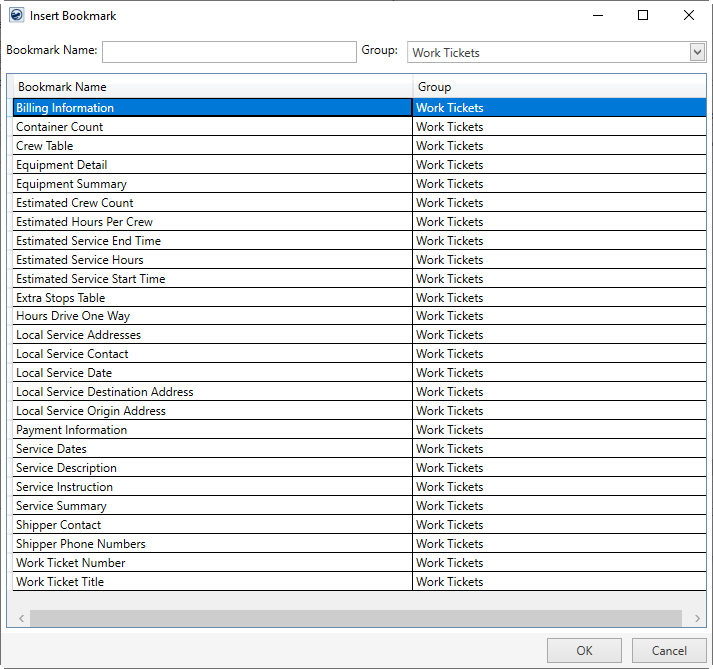
Figure 10: Insert Bookmark dialog
Any bookmark that was part of the Local Services group before and is now named Work Tickets will work as expected. You will not need to update your forms to re-add these. For example, if you referenced the “Service Dates (Local Services)” bookmark in your documents, then this bookmark will continue to work even though it is now named “Service Dates (Work Tickets).”
Reference the Local Services Bookmarks and Work Ticket Report Bookmarks topics for additional information.
Refer to the Forms Designer topic for an overview of bookmark usage.
|
SUMMARY (6170) |
|
Forms Designer: New O&I Locations bookmarks added and new Work Tickets category defined. |
|
The following areas have been affected by this change:
|
BI Tool Updates
The following improvements have been made to the Enterprise BI Views affecting any queries you may have within your Enterprise BI system.
Crew Actuals View
The following changes have been made to this view:
|
Column Name |
Description |
|
EstimatedWeight |
New column displaying the Estimated Weight set on an order through the Move Information tab. |
|
GPSIn |
The location of each punch in now displays in this column along with the corresponding local start time. Each punch in location displays on a separate line within this column in the format [Start Time Local]: [GPS Latitude], [GPS Longitude]. |
|
GPSOut |
The location of each punch out now displays in this column along with the corresponding local start time. Each punch out location displays on a separate line within this column in the format [Start Time Local]: [GPS Latitude], [GPS Longitude]. |
|
HauledWeight |
New column displaying the Hauled Weight set on an order through the Move Information tab. |
NOTE: The GPSIn and GPSOut changes were implemented to correct an issue where multiple listings showed for each entry. Refer to the Fixes section below for more information.
Local Dispatch Grid View
The following changes have been made to this view:
|
Column Name |
Description |
|
CrewMemberFullList |
Newly added column that lists of all crew on the service separated by a line feed. The role for each person displays next to their name. The lead appears at the top of the list. |
|
Equipment |
Updated the existing column to display each assigned resource separated by a line feed. |
|
EquipmentRequests |
Newly added column that lists of each requested item set on a service through Equipment Request displays separated by a line feed. |
|
LaborRequests |
Newly added column that lists of each requested item set on a service through Labor Request displays separated by a line feed. |
Local Services View
The following changes have been made to this view:
|
Column Name |
Description |
|
EquipmentRequests |
Newly added column that lists of each requested item set on a service through Equipment Request displays separated by a line feed. |
|
LaborRequests |
Newly added column that lists of each requested item set on a service through Labor Request displays separated by a line feed. |
Refer to the BI Tool and Enterprise BI Views topics for more details.
|
SUMMARY (5767, 6153, 6163) |
|
BI Tool view data updated |
|
The following areas have been affected by this change:
|