

Watch the Overview Video for this release
This section lists the features added to MoversSuite.
|
|
Watch the Overview Video for this release |
Activity Logging added in MoversSuite Administration Tool
You can now track and log any changes made in the Branch Setup and Personnel Setup fields. By default, this feature is turned off and only administrators with “Super User” privileges can turn this option on. To choose the fields to be logged, a new setup area named Admin History Setup has been added and can be found under the Administration category in MoversSuite Administration tool.
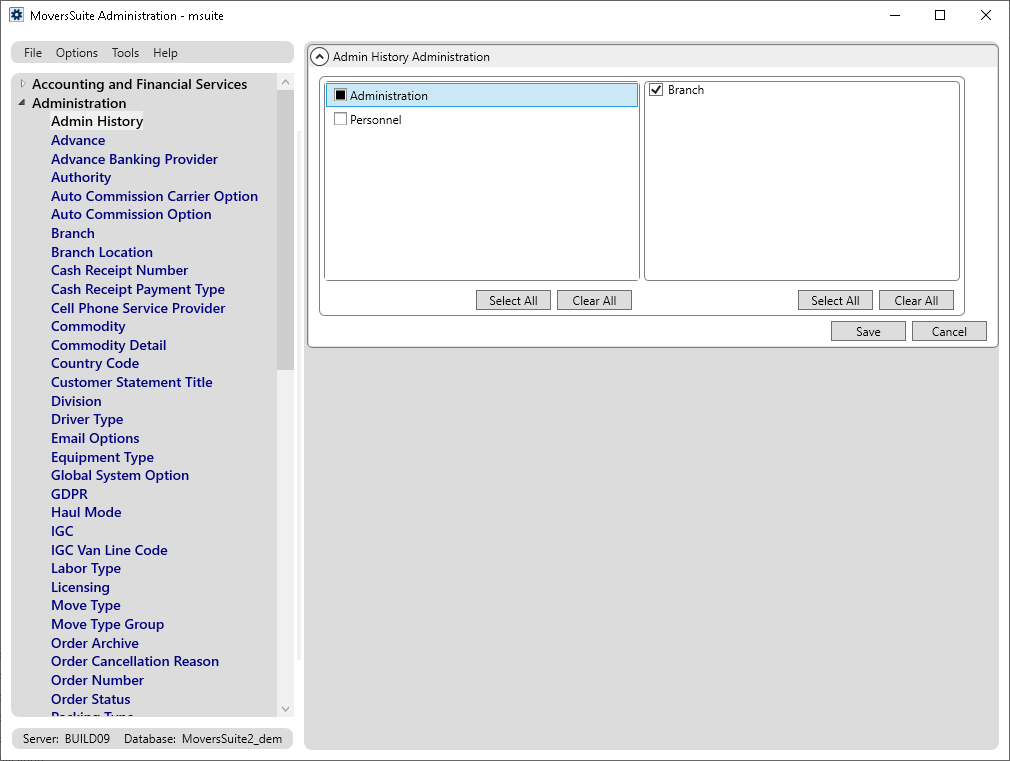
Figure 1: Admin History Setup
Checkmark all the areas you want to log and press Save.
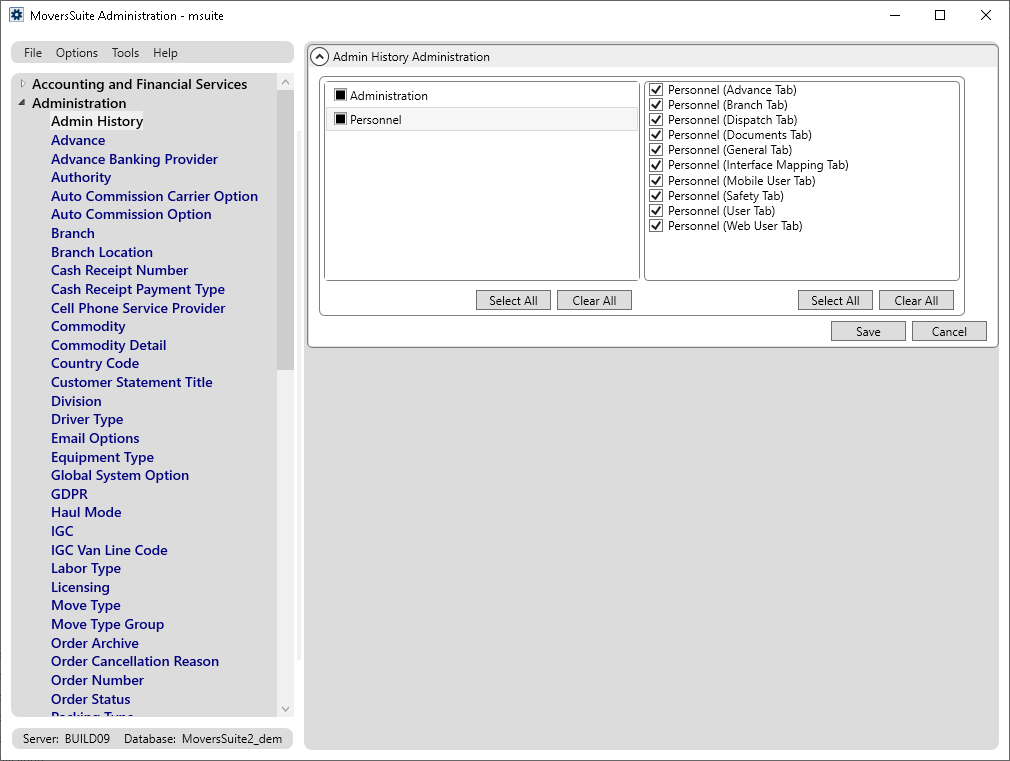
Figure 2: Admin History Setup
The logged admin history can be viewed through the View History Log option available in the newly added Tools Menu (Admin) dropdown.

Figure 3: Tools Menu (Admin)
Selecting the View History Log option opens up the Admin History screen. The columns displayed in the Admin History screen include:
Setup Area: Shows the exact setup area from within the admin tool where the change was made.
Record Identifier: Shows the key record identifier that was edited e.g. First Name/Last Name etc.
Setting: Shows the field name that was changed
Changed From: Shows the field value before change
Changed To: Shows the field value after change
User: Shows the user profile used to make the change
Date/Time: Shows the date and time at which the change was made

Figure 4: Admin History screen
Feature Summary
•The Admin History screen is available through the Tools Menu (Admin) menu and is a modal dialog and requires you to close it before proceeding to use the application.
•Admin History is available to only those users assigned to an Admin Profile Setup record.
•The Admin History screen allows sorting, grouping, and filtering.
•By default, the grid is sorted by "Changed On" in descending order, i.e. most recent changes display first.
•You can use the dates at the top of the Admin History screen to filter the list of changes that show in the grid. By default, the past 30 days of changes are shown.
•The grid will show a maximum of 1,000 items. If there are more than 1,000 records for the dates selected, a warning is shown beneath the grid.
•The grid allows exporting the selected rows. This feature is available through a right-click menu.
In the future, we hope to expand the functionality to incorporate logging additional fields. Please submit your requests for additional fields through our Product Feedback site.
Refer to the Admin History, Admin History Setup, and Tools Menu (Admin) topics for more information on this feature.
|
SUMMARY (5440) |
|
Activity logging added in MoversSuite Administration tool. |
|
The following areas have been affected by this change: Schema Changes Version 2020R15
|
Custom Work Tickets Added in Forms Designer
To assist our customers in migration from work ticket reports of Crystal Reports format (phasing out at EOY 2020), MoversSuite now allows you to create Custom Work Tickets through the Forms Designer Templates window.
With this feature update, the Reports and Letters are now integrated for Work Ticket reports and you can structure your Custom Work Tickets using the Work Ticket Report Bookmarks of your choice. Refer to the Custom Work Tickets topic for more information on creating a customized report using Work Ticket Report Bookmarks.
Creating a Custom Work Ticket Report/Letter
To create Custom Work Tickets, simply create a new template through the Forms Designer Template Properties screen. Assign the newly added Report System Location of Work Ticket Report in the Forms Designer Template Properties window and set other fields and values as needed (again, refer to the Work Ticket Report topic for a complete list of fields available for your work tickets; newly added fields are documented under Version 2020 R15 Enhancements section below).
Note: Choosing Work Ticket Report from this dropdown updates the Document Type dropdown to default to the first Document Type Setup record encountered with the keyword "Work Ticket" in its description field.
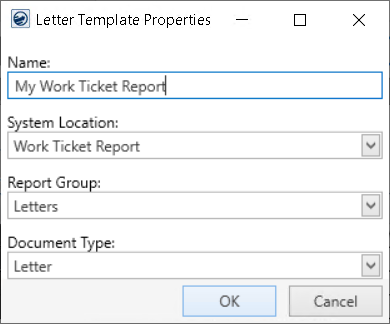
Figure 5: Letter Template Properties
Once created, you need to assign the report to a suitable profile through Report Profile Setup (MoversSuite Administration > Reports > Report Profile).
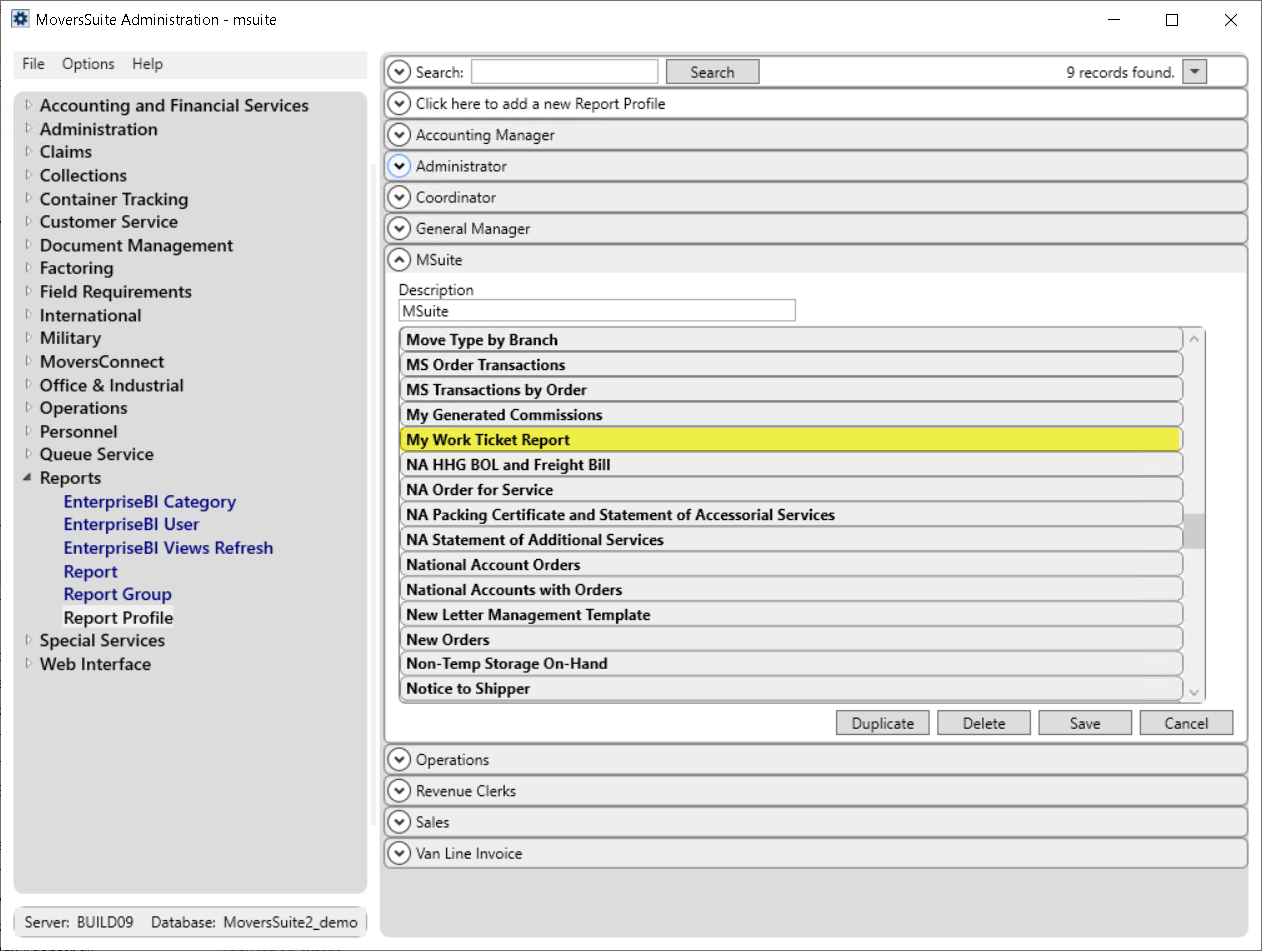
Figure 6: Report Profile Setup
The Work Ticket button on the Dispatch Center (Local Dispatch) screen will keep on getting updated with all the new reports/letters added through Forms Designer Templates screen after being assigned through Report Profile Setup. To access any of the Work Ticket Report added, click on the Work Ticket button and it will list every available Work Ticket Report.

Figure 7: Work Ticket Reports
Moreover, the Work Ticket Report that you add, will be accessible through the right click menu in the Local Services grid.
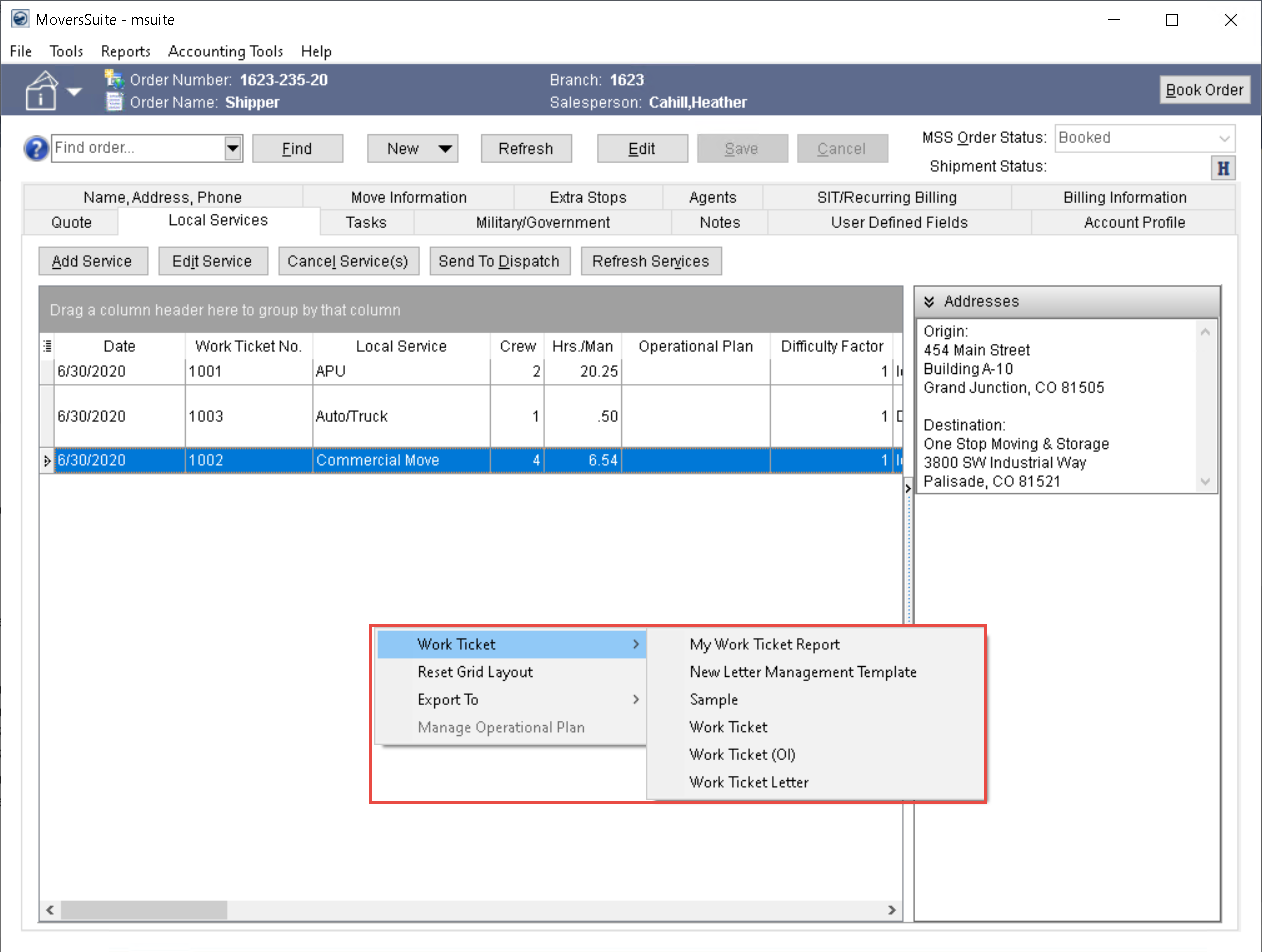
Figure 8: Local Services grid
We hope to also provide some basic templates that you can import into existing documents. Our goal is to provide you with a Forms Designer document of the existing, standard Work Ticket Report and standard Work Ticket (O&I) Report that are available as Reporting Services reports.
Refer to the Work Ticket, Work Ticket Report and Report Profile Setup topics for more information on this feature.
|
SUMMARY (5601) |
|
Ability to make Custom Work Tickets added in Forms Designer. |
|
The following areas have been affected by this change: Forms Designer Template Properties
|