This section lists the features added to MoversSuite.
Create Advances Option Added for Comdata
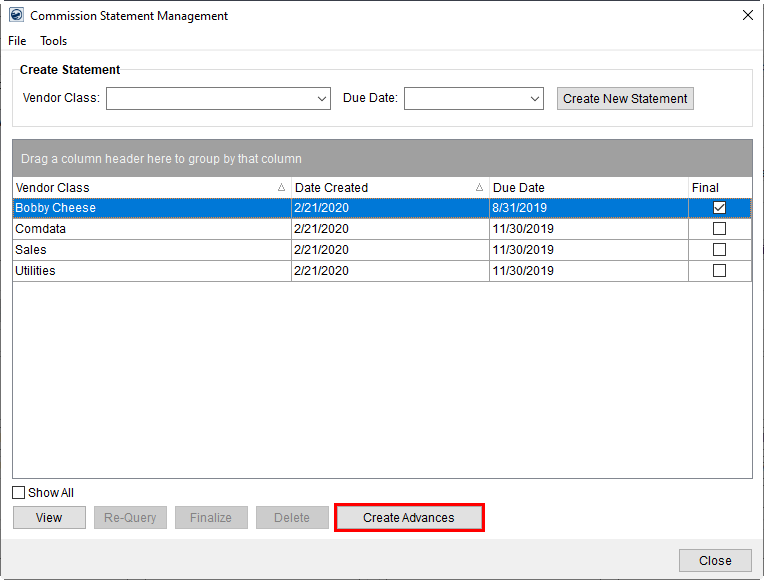
Your company can now create advances from commissions for Comdata. A new Create Advances option is available through Commission Statement Management screen allowing users to create the advances.
Figure 1: Commission Statement Management screen
The Create Advances button opens a new Create Advances dialog from which you can finish the creation process and view the status of advance attempts.
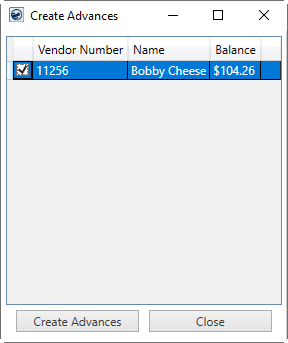
Figure 2: Create Advances dialog
Press the Create Advances button from this dialog completes the creation process. The advances added to the system can be sent to Comdata when processed through the Advance Processing screen. Of note, these advances show in Advance Processing with a Reason of “Commission Payment.”
Please note the following when attempting to create Comdata advances from commissions:
•The Create Advances option is only available for finalized commissions statements with a positive balance.
•Only the most recent finalized commissions can be advanced from.
•You cannot create multiple advances from the same statement.
•The advance created is only for Comdata credit cards. Bank accounts and debit cards advances are not created through this process.
•Create Advances option only creates advances and to generate advance transaction, you must complete processing through Advance Processing.
•Credit limits for advances are based on the commission amount. Credit limits set within MoversSuite Administration do not apply to these advances.
Refer to the Comdata Advances From Commissions and Comdata Advances From Commissions Setup topics for more information. For related topics view Commission Statement Management and Create Advances.
|
SUMMARY (5737) |
|
Create Advances option added for Comdata Advance/Payment Processing. |
|
The following areas have been affected by this change: Commission Statement Management Comdata Advances From Commissions Comdata Advances From Commissions Setup Schema Changes Version 2020R05
|
Job Costing – Average Labor Wages by Branch
Job Costing has been updated to allow you to set Average Hourly Wage for planning estimates by each branch. A new Branch Item section is available for each Labor Type Setup record allowing you to define a wage for each branch.
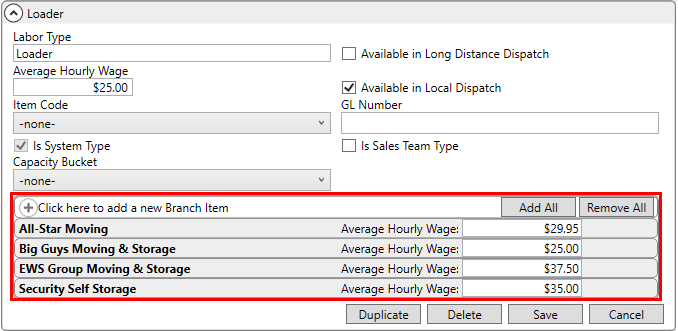
Figure 3: Labor Type Setup
In Job Costing, the application now checks for the Average Hourly Wage assigned to a specific branch first. If none is defined for that branch, then the application refers to the Average Hourly Wage assigned at the top level of the Labor Type Setup record.
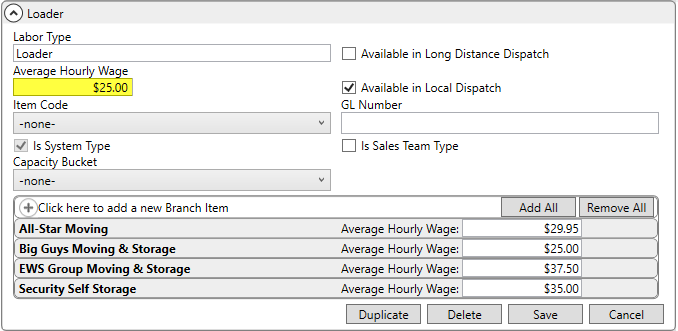
Figure 4: Labor Type Setup
To help you in assigning wages to each branch, a new Mass
Add All Job Costing Branch Items Shownoption is available from the list of
record options (available in the upper right-hand corner of the setup area by
pressing  ).
).
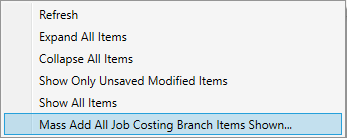
Figure 5: Mass record options from Labor Type Setup
Once you update one Labor Type record, you can select the ones you wish to update via the Search and then choose the Mass Add All Job Costing Branch Items Shownoption. Pressing Overwrite All Records Shown from this dialog copies the Branch Items from the chosen record to all records displayed in the grid by the Search.
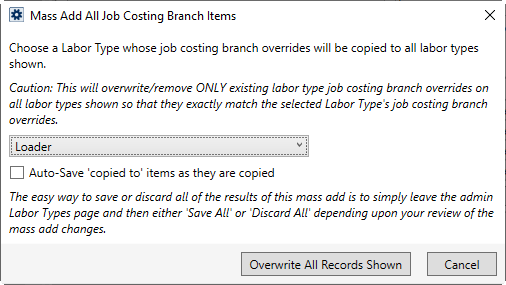
Figure 6: Mass Add All Job Costing Branch Items dialog
Refer to Basic Job Costing Setup, Job Costing and Labor Type Setup topic for further details.
|
SUMMARY (5739) |
|
Define Average Hourly Wage by branch for Job Costing. |
|
The following areas have been affected by this change:
|