Release Date: May 4, 2020
Summary:
This version of MSCrew includes the following improvements:
•The Jobs listing now sorts by service start time. On the Past listing, the services show the most recent services at the top, while the Upcoming listing shows the oldest services first.
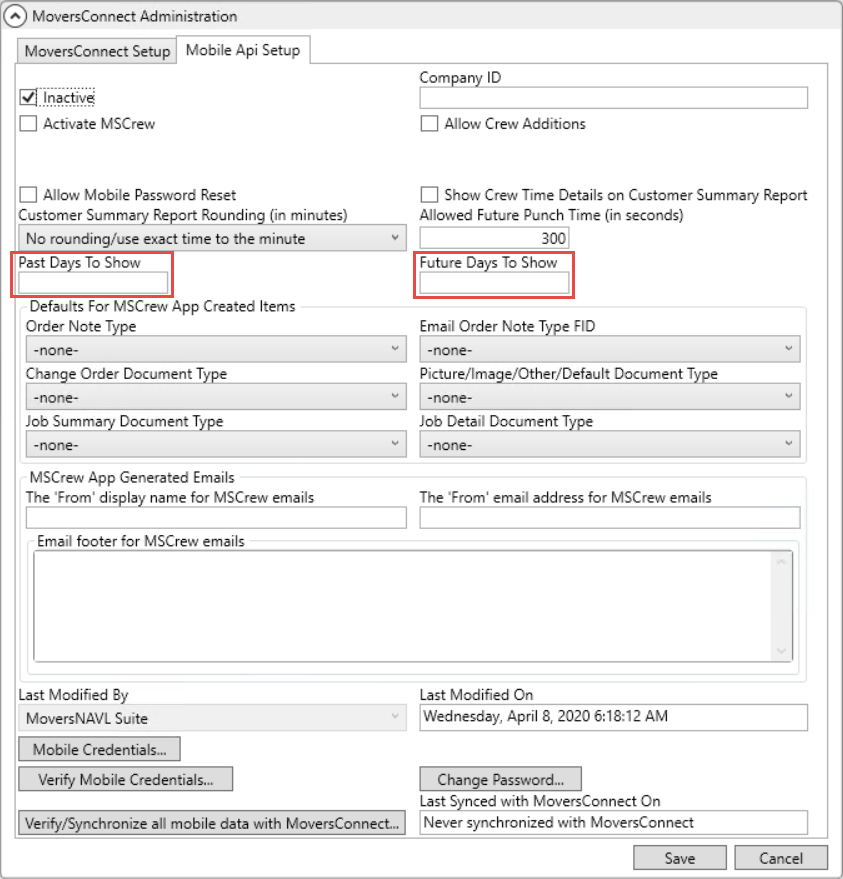
•You can configure the number of days in the Past or into the future for Upcoming jobs to show. By default, the application shows three days in the past and five days into the future. Refer to the Past Days to Show and Future Days to Show settings within Mobile Api Setup to modify these settings.
•Add crew members to a job directly from the mobile app. A new Add button is available from within the Assigned Crew listing. The application allows you to choose from active personnel on the same Dispatching Common View associated to the service branch.
•Lock down options available to prevent crew and/or crew lead from changing the punch times. The lockdown is controlled through the Mobile Api Setup settings of Is Crew Time Locked, Crew Time for Crew Lead Only, and Is Crew Time for Crew Lead Locked.
•Optionally add comment to a punch activity. A new dialog appears each time you punch in or out of an activity.
•When emailing a document, you now have an option to select emails associated to the job.
•Crew can no longer access customer email address or email the customer directly.
•Crew Time Detailed listing is available to the Job Summary and Internal Summary reports.
MoversSuite Administration Setup
In addition to the general setup provided in the MoversSuiteCrew Mobile Application Setup and Administration topic, following are the administrative changes that need to be made in the Mobile Api Setup screen.
1: Past and Future Days to Show
To set the Past and Future Days to Show fields, head to the Mobile Api Setup screen and provide the desired number of days.
Figure 18: Mobile Api Setup
2: Set the Crew Flags
To use the crew addition option through MSCrew, set the “Allow Crew Additions” flag. For locking up the crew times once entered, set the “Is Crew Time Locked” flag. Similarly, for locking up the Crew times for crew leads, set the “Is Crew Time For Crew Lead Locked” flag.
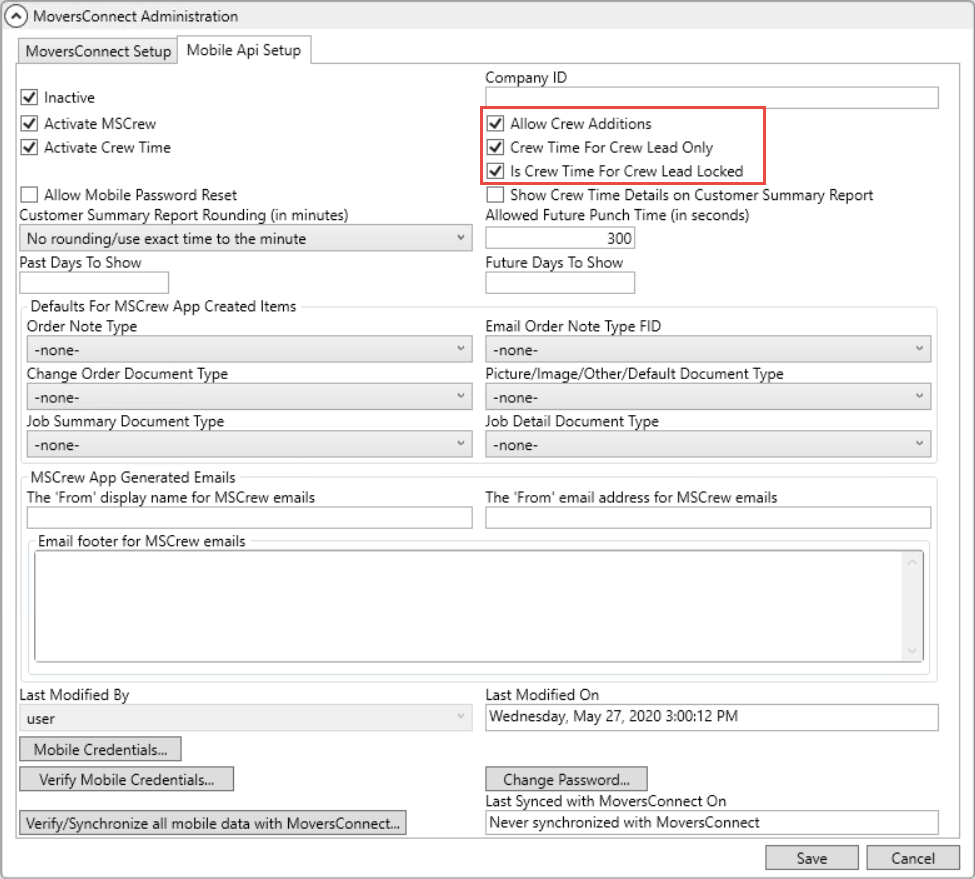
Figure 19: Mobile Api Setup
Refer to the Mobile Api Setup for further details on this topic.