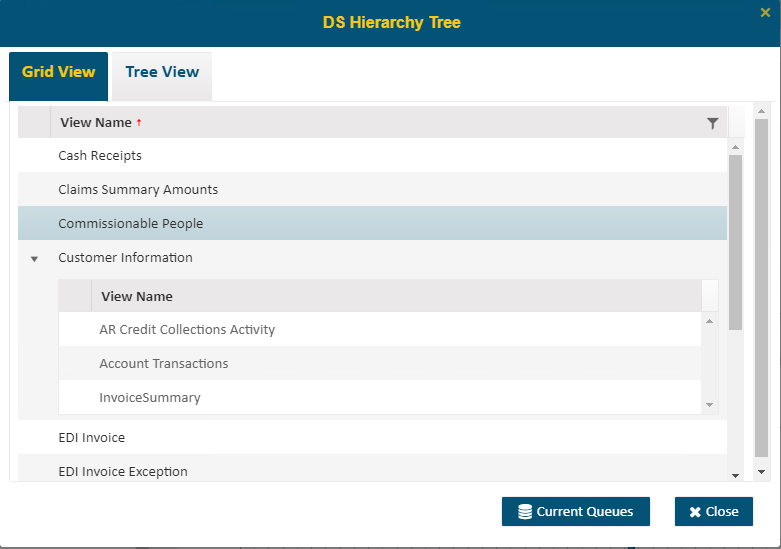
This screen will allow users with Administrator access to change defaults and schedule caching of reporting views.
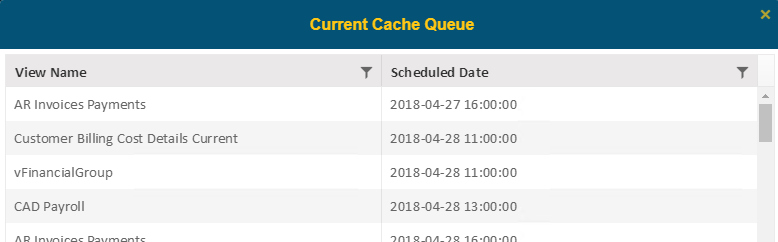
The Current Queues button will display a screen displaying the current schedule for updating views.
Clicking on a specific view will from the Grid View tab allow you to set defaults and cache schedules.
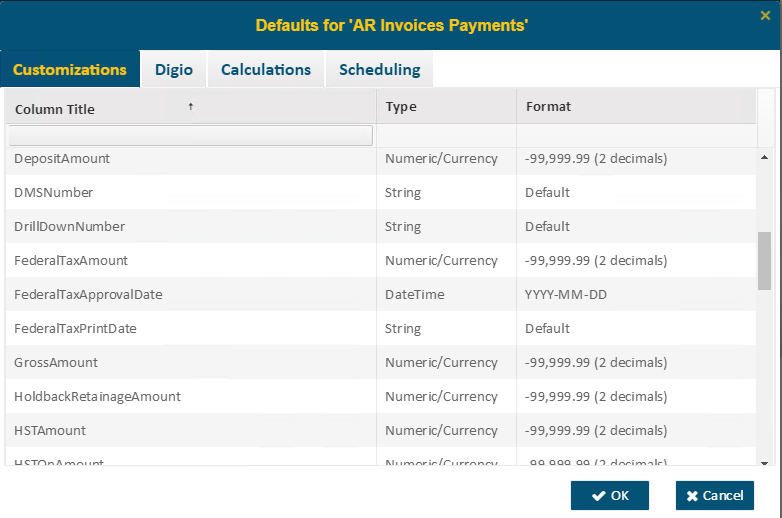
When users create a report with View access, the default setting will apply to the report. Created reports allow users (who have access) to edit and override these settings in the report editor. Only Administrators have rights to change the default settings for View.
The Customizations tab allows for setting defaults for the Column Title, Type and Format.
The Calculations tab will allow for adding of calculations to be used as columns in reports. Any report created will allow users (that have access) to edit and override these settings
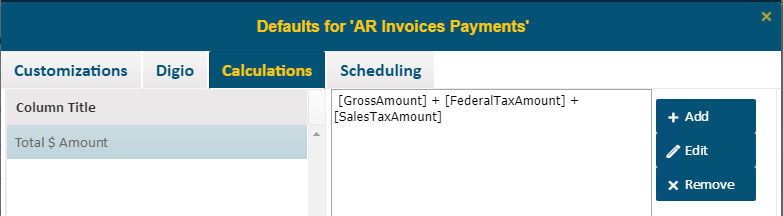
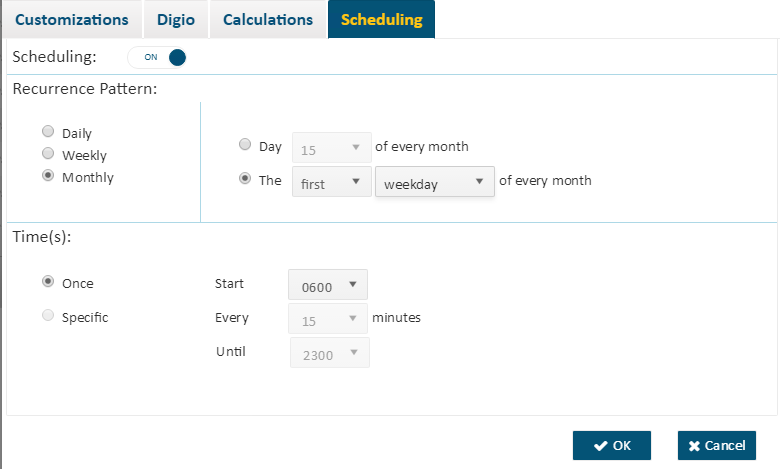
The Scheduling tab allows for setting a schedule to have reports build into cache at a pre-determined time. Using scheduling effectively will dramatically improve performance within Enterprise BI. It is best to set schedules based on the likelihood of how these views will be used in reports and when people will likely access them (hourly, daily, monthly etc.). If Scheduling is turned on, the user will have access to rebuild the reporting cache on the fly and will get notice once complete.
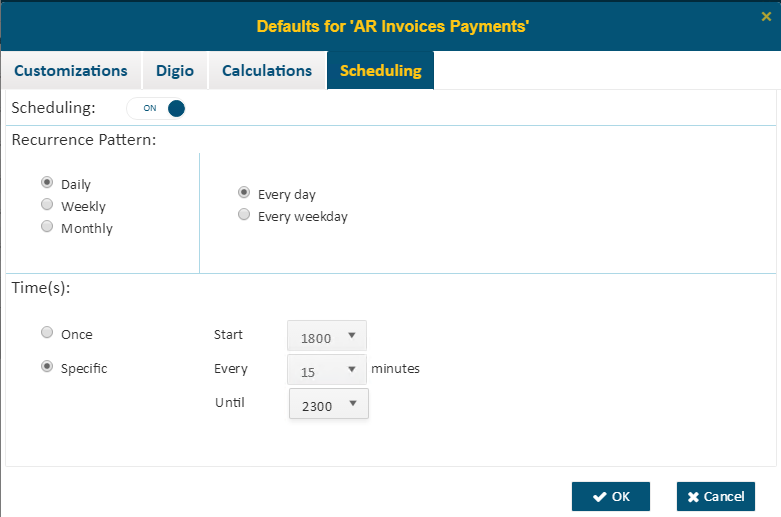
There are three recurrence patterns: daily, weekly, and monthly.
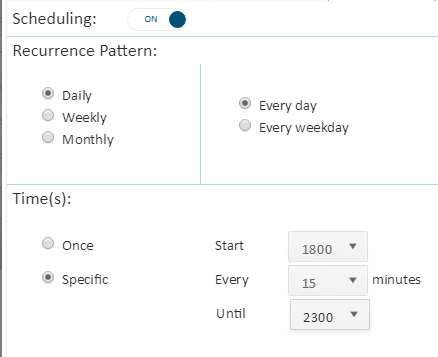
Daily: The user may select Every Day or Weekday and decide how often the caching happens. When selecting the Specific option, choose the Start time and Until time, as well as the interval time between each caching.
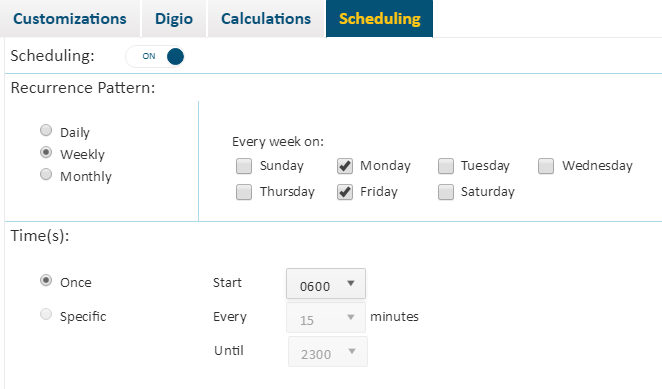
Weekly: allows the user to customize the days and times when caching will occur.
Monthly: users can specify which day of the month to build the cache either with a specific day of the month, or an interval (i.e. the first Friday of every month). You can also select the time of the day to start building the cache.