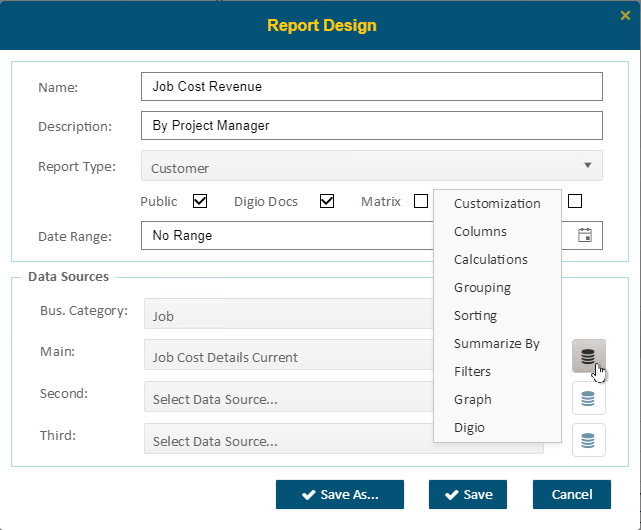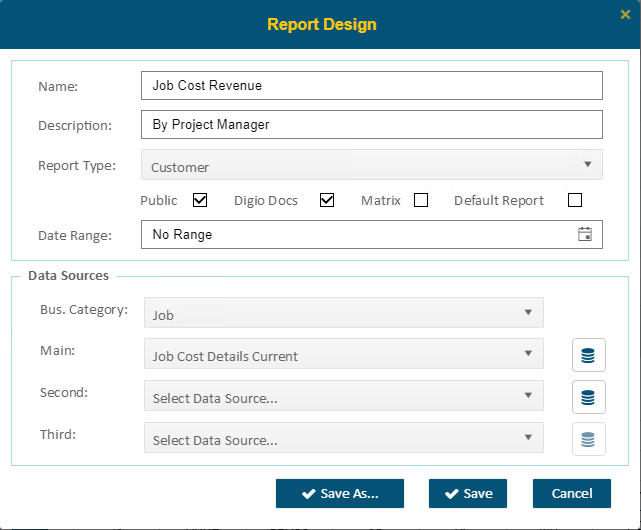
When users open a report, clicking New or Edit will display the Report Design dialog.
This is the main screen where you create or edit a report. Some options that need explanation are as follows:
•Report Name allows up to 25 characters
•The Report Type is the menu folder where you place this report under
•If Public is checked, then this report will be shared in Public Reports. If not, then it will be a report only you can see in My Reports
•Matrix summarizes detailed data, such as transactions into grouping along the rows and columns. Clicking on a value in the matrix will display all of the transactions and data that make up the value. Non-Matrix reports will show all the transaction data. The Drill Down will show more details associated with the entire row of data.
•If Default Report is selected, then this report will be the one launched when the user logs in
•Date Range – You can define a default date range for this report
•Business Category – Use this to decide which types of data you are looking at
•Data Sources – you can drill down three levels within a report
•Save As – This will allow you to copy this report and rename and adjust as desired
When clicking on the buttons to the right of the data sources, you will see the following options. The options Matrix available to use will be dependent on whether you have chosen this report to be a matrix report or not.