You can view details of a carrier through the  button
adjacent to the Carrier setting within the Bases section on the Military/Government tab.
This button opens the Carrier Information (Military/Government) screen allowing
you to view information on the carrier, such as address, phone number,
identification number, and a list of contacts.
button
adjacent to the Carrier setting within the Bases section on the Military/Government tab.
This button opens the Carrier Information (Military/Government) screen allowing
you to view information on the carrier, such as address, phone number,
identification number, and a list of contacts.
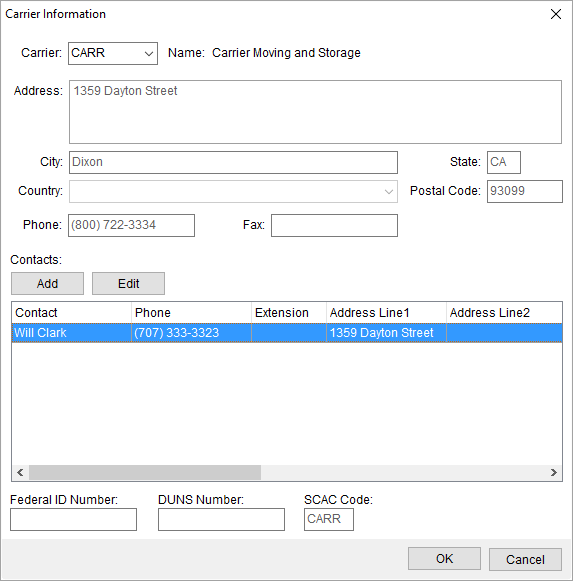
Figure 3: Carrier Information
(Military/Government) screen
Options available to you through this screen include the
ability to add and edit contacts for the carrier. Pressing Add or
Edit options the Add Contact
dialog where you can update contact information.
The contact information is also managed through Carrier Setup
(Military/Government), along with other carrier data and the option to
delete a contact.
Refer to Carrier Setup
(Military/Government) for all field descriptions.
The option to send an email to a contact is available through
the right-click option of Send
Email. This opens a new mail window with the email of the contact set as the
recipient.
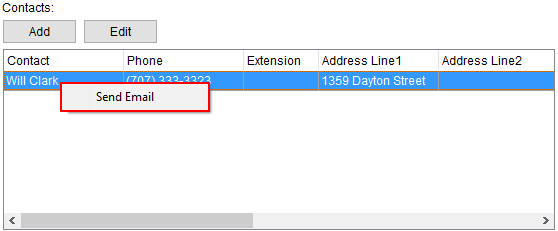
Figure 4: Contacts section within
Carrier Information (Military/Government)