Field
Description
Move Type Tab
Description
Enter the name of the Move Type record (up to 25 characters). These records will be available as options to the Type of Move field in Move Information.
Make orders of this type available in Long Distance Dispatch
Set this flag to make orders belonging to this move type record available for assignment to drivers through Long Distance Dispatch.
Note:
This flag has no effect on Local Dispatch or Local Services.
Branch
Select a Branch from the list of those defined within the Branch Setup. This branch will be the default for any order created using this move type record.
Move Type Group
Select a Move Type Group from the drop-down list to associate a general ledger account to this particular move type record.
Use Move Type Group Setup to create groups.
Note: A generic type of “Not Mapped” has been provided by MoversSuite.

International Auto Register
IMPORTANT: This feature is not yet implemented.
Setting this flag instructs MoversSuite to automatically upload an UniGroup order when it is booked through the International Orders module. Refer to UniGroup International Interface for more information.
Order Number Style
Select a style to apply to an order when the move type is assigned. Refer to the Order Number Setup for specifics.
Selecting –none- will turn on the Manual Order Number flag that will require the user to enter a free-form Order Number when booking orders.
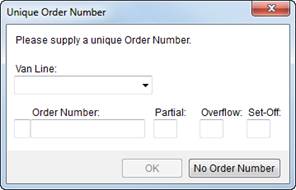
Figure 57: Unique Order Number dialog
See Unique Order Number and Book Order Information for more details.

Inactive
Check this flag to mark this record as inactive. When inactive, the record is unavailable to assign to orders through the Type of Move setting, found within the Move Information tab and elsewhere in MoversSuite.
This setup does not initially display all inactive records. To view inactive records, choose Show All Items from the menu in the upper right corner of the listing:
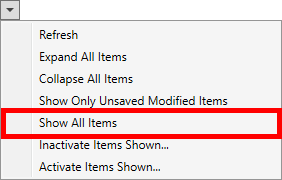
Figure 58: Multiple-record menu
Interface Item
Use this section to link the record to an external system that may be required for exchanging data between disparate systems.
Interface
Select a value from the list defined within XML Interface Setup.
External Code
Enter a code supported by the Interface for exchanging data with MoversSuite (up to 32 characters).

Duplicate
Use this function to create an exact copy of the record. Pressing this functions opens a new record with all the details of the copied record; you can make changes and press Add to keep the new record.

Delete
Permanently remove this record from the system. MoversSuite prevents you from deleting a record that is in use by the application, i.e. linked to another record. If you wish to make the type unavailable to users in MoversSuite and to not initially display in this setup listing, then mark it as Inactive (see above).

Save
Keep changes made to this record.

Cancel
Discard any changes made since the last time the record was saved.