This section provides a walk-through of the functions available within the MoversSuiteCrew Mobile Application.
|
|
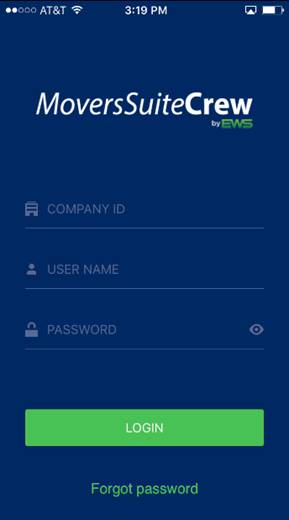
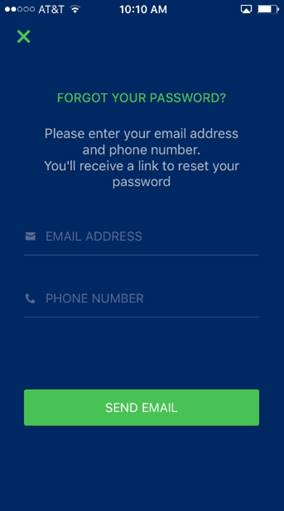
Login Screen The initial screen prompts you to enter your company identifier along with login credentials. The COMPANY ID is provided to you by EWS. The USER NAME and PASSWORD are established within the Mobile User tab within Personnel Setup. Forgot Password option allows you to request a new password. You will be prompted to enter your EMAIL ADDRESS and PHONE NUMBER. The Mobile Password Reset option must be on to receive the Forgot Password option.
|
|
|
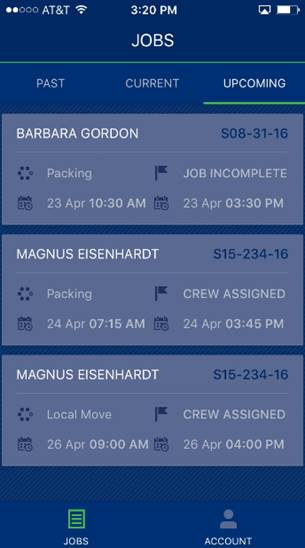
Jobs Screen View your service assignments through the Jobs screen. You can view PAST, CURRENT, and UPCOMING jobs. CURRENT lists the jobs for the current date.
The information that displays includes the shipper name, order number, service name, dispatch status, and date and time for the service.
You can also access the ACCOUNT functionality from the Jobs screen as well. |
|
Info Screen View the specifics of a service. Access further data through CONTACTS, NOTES, and DOCUMENTS screens.
The title features the shipper name along with the ability to Punch into an activity for the job.
View and add (crew lead only) CHANGE ORDER, JOB SUMMARY, and INTERNAL SUMMARY documents.
|
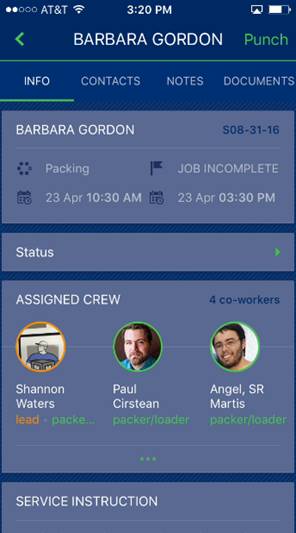
Job Information The information that displays includes the shipper name, order number, service name, dispatch status, and date and time for the service.
Leads have access to set the Dispatch Status through the Status option.
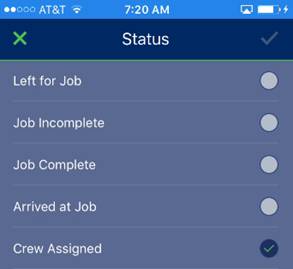
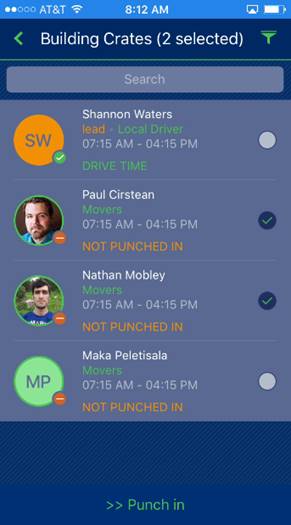
You can view members of the ASSIGNED CREW. Leads have the ability to punch in/out multiple crew members at a time through the ASSIGNED CREW screen.
Other information includes the following: SERVICE INSTRUCTIONS REQUESTED LABOR/EQUIPMENT ASSIGNED LABOR/EQUIPMENT MATERIALS PACKING/UNPACKING
|
|
|
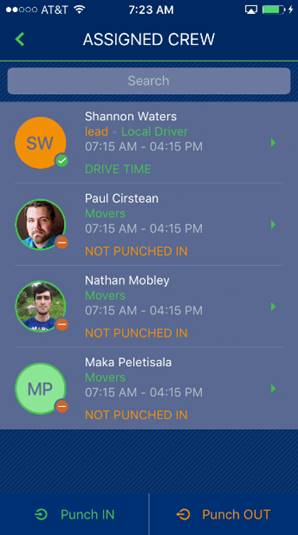
Assigned Crew Screen View all assigned crew through this screen and access their contact information by tapping on an entry. You can tap on a phone number to text or call the person or tap the email address to send them a message using the mail service on your phone.
Use the Search feature to locate personnel by entering partial information of their name and allowing the screen to filter based on the text.
For leads only, the Punch IN and Punch Out options allow you to select multiple crew and log them into an activity at once.
|
|
|
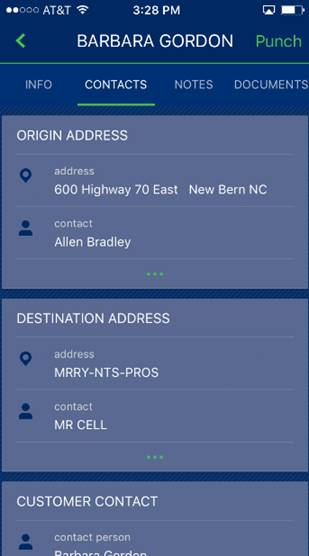
Contacts Screen View the contact information as well as call, text, or email contact personnel from this screen. Address types include the ORIGIN ADDRESS, DESTINATION ADDRESS, CUSTOMER CONTACT, and ASSISTANCE contacts that include coordinator, sales person, dispatcher (person that cleared the service), and project manager on the order.
The title features the shipper name along with the ability to Punch into an activity for the job.
Tapping on an entry evokes the contact specifics.
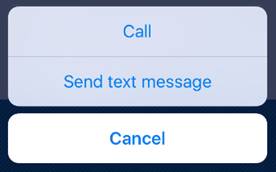
Tap on the email address evokes a new email message from your device. Tap on the phone number provides call or text options.
If you tap on an address, the application prompts you to open a map and directions from the applications available to your device, such as Apple Maps and Google Maps.
|
|
|
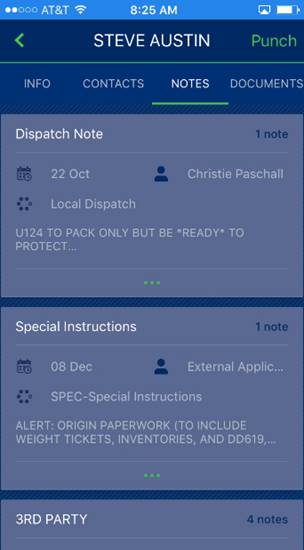
Notes Screen View the order notes associated to the job through this tab. Details of the note include the following: Note Type Count of notes of the particular type Date the note was added to the system User that created the note Subject line of the note First two lines of the note
Tap on an entry to view the full text of the note.
Only notes marked as available in MoversSuite display on this screen. Refer to the MoversSuiteCrew Settings in MoversSuite topic for details. See Notes for more information.
Crew leads can enter a note that is attached to the order. View MoversSuiteCrew Add Note for details.
The title features the shipper name along with the ability to Punch into an activity for the job.
|
|
|
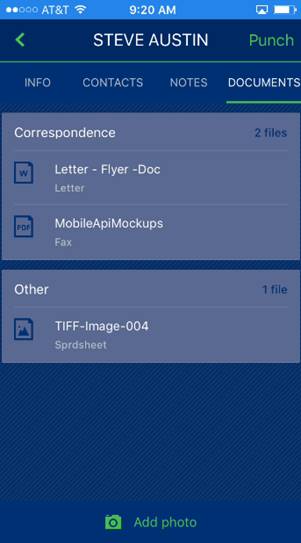
Documents Screen View the order documents associated to the job through this tab. Details include the following: Category Count of documents of the particular type Document name Document type Tap on an entry to open the document within the mobile device.
Only documents marked as available in MoversSuite display on this screen. Refer to the MoversSuiteCrew Settings in MoversSuite topic for details. See Document Management for more information.
The title features the shipper name along with the ability to Punch into an activity for the job.
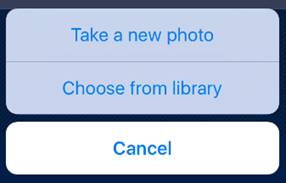
You can add a document to your device by tapping on Add photo. Options include the ability to add a photo to the job using the camera attached to your mobile device or by choosing a photo that already exists on your device.
Note: You must enable security to the MSCrew application through Settings on your device. You can scroll down through the list to locate the MScrew application or go through Settings > Privacy > Camera and locate the MSCrew application. |
|
|
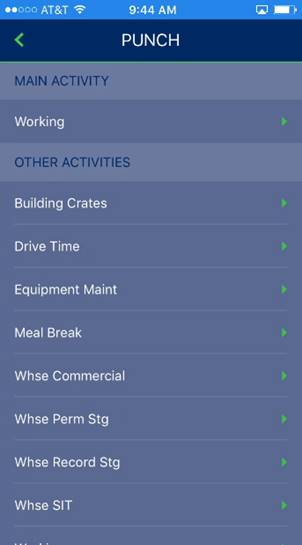
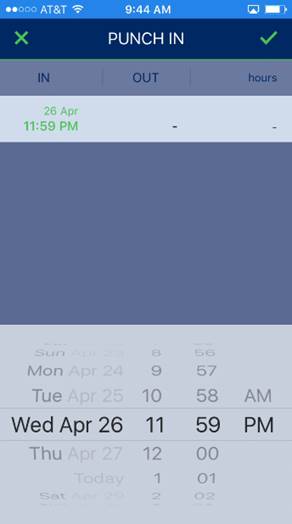
Punch Screen Access to this screen is through the Punch option available from the Info, Contacts, Notes, and Documents screens. It is also available for leads through the Jobs > Assigned Crew screen. Use this screen to log into an activity to record time under. Once you choose an activity, a date scroller appears prompting for you to enter the date and time of the punch. One a selection is made, press the green confirmation arrow to accept the punch or press the green X to back out of the punch.
|
|
|
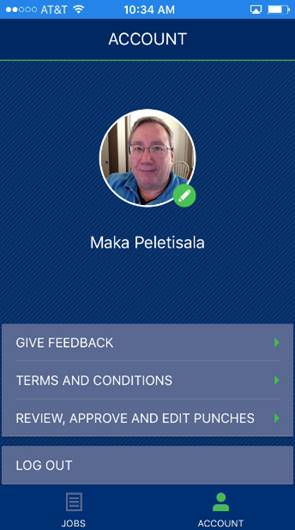
Account Screen Access to this screen is through the ACCOUNT icon available through the JOBS screen. Options from this screen include the following: Open the MoversSuite feedback site through the http://feedback.moverssuite.com/forums/9118-moverssuite-enhancements link. View the Terms and Conditions of using the mobile application. Review, edit, and approve punches through the MoversSuiteCrew Crew Time feature within MoversConnect. Set or update your profile photo. Log out of MSCrew.
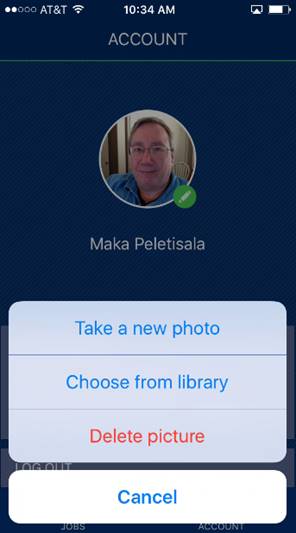
To update your profile image, tap on your photo and choose from the options that include using the camera on your device or by choosing from a list of existing images on your device.
|