A key component of the MoversSuiteCrew Mobile Application is the ability to log your time against activities associated to a job. The Punch feature allows you to log your time against a select activity. Additionally, crew leads have the ability to punch in or out multiple personnel at a time. Punch activity can be finalized and approved through MoversSuiteCrew Crew Time, which is a website hosting within MoversConnect.
Punch In/Out
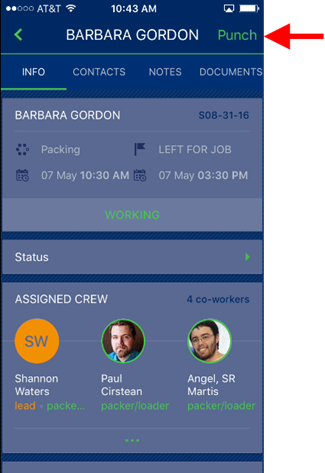
Within the Jobs screens, you can press Punch in the upper right-hand corner of the screen to access a list of activities.
Figure 40: Info screen
The list of activities is predefined for your company within Crew Activity Setup. If you are currently punched into an activity, then PUNCHED IN displays within the listing.
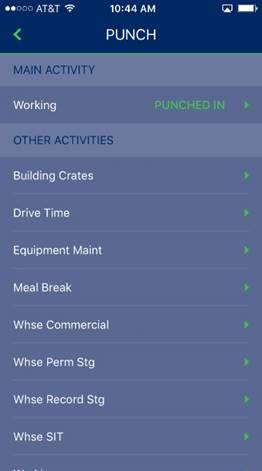
Figure 41: Punch activities
If you wish to logout of an activity, you can tap on the PUNCHED IN activity and choose Punch OUT. You can also punch into a different activity and the application will automatically log you out of a prior activity.
When punching in or out, you use a rolling date selector to choose the date and time. Then press the green arrow to confirm.
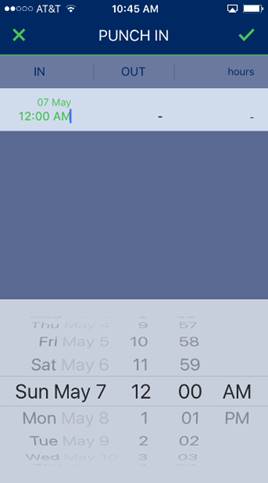
Figure 42: Punch In screen with date scroller
If you are logged into another activity and you confirm logging into a new activity, the application prompts you to confirm that you wish to log out of the prior activity. Press Yes on the warning to confirm the log out or press No to cancel.
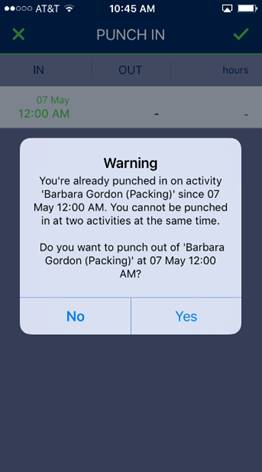
Figure 43: Punch In screen with warning
Crew Lead Punch In/Out
Crew leads have the option to punch in or out one or more person at a time through the Assigned Crew screen.
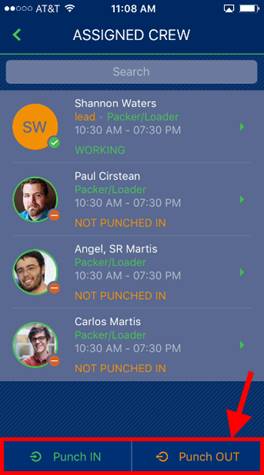
Figure 44: Assigned Crew screen
Choosing Punch IN prompts a lead to select an activity.
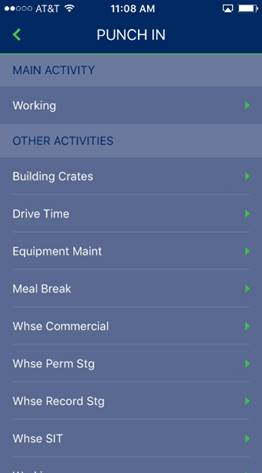
Figure 45: Punch activities
Once an activity is selected, you can mark which employees you wish to assign to the service. You can view the punch status along with role and scheduled service time from this screen, as well.
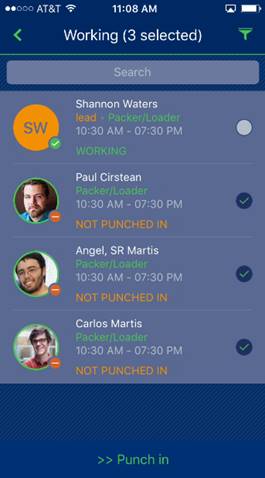
Figure 46: Punch in crew selector
Pressing Punch In, you are prompted to set a date and time using the scrolling selector.
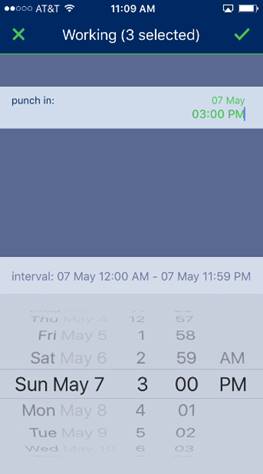
Figure 47: Punch In screen with date scroller
Once the green arrow is pressed, the Assigned Crew screen appears with updated activity listings.
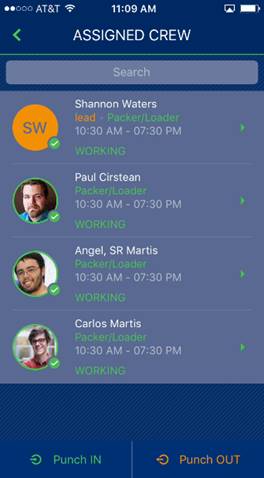
Figure 48: Assigned Crew screen
When the job is complete and all personnel are punched out, a lead can review, update, and approve the time entries through the MoversSuiteCrew Crew Time function.