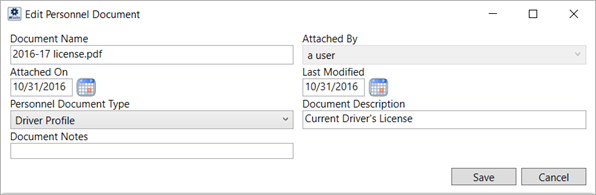
The Edit Personnel Document dialog appears when you click on a record or when you add a record within the Documents tab in Personnel Setup. Use this dialog to update the Personnel Document Type, Document Description, and Document Notes.
Figure 32: Edit Personnel Document
Technical Field and Function Information
|
Field/Function |
Description |
|
Document Name |
Physical file name and extension of the document (read-only). |
|
Attached By |
The name of the user that attached the document displays (read-only). |
|
Attached On |
Date and time the document was added to the system (read-only). |
|
Last Modified |
Date and time the document properties were last updated. Document properties are updated through the Documents tab within Personnel Setup (read-only). |
|
Personnel Document Type |
Selected type assigned to the document. Document Type determines which the group it lists under along with security aspects. Document Type values available through this setting are defined within Personnel Document Type Setup. |
|
Document Description |
File description provided when the document was added to the system (up to 64 characters). |
|
Document Notes |
Text set for the note when the document was added to the system displays (up to 256 characters). |
|
In Add mode, the following options are available: | |
|
|
Add Press Add to keep the changes made to the record and store the document within the database. |
|
|
Cancel Cancel the document add and close the screen. |
|
In Edit mode, the following options are available: | |
|
|
Save Save any changes made to the properties of the document record and close the screen. |
|
|
Cancel Reverse any changes made to the document properties and close the screen. |


