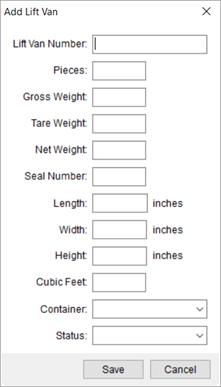
Use the Lift Vans section within Container/Lift Van/Airbox Information to define lift vans/airboxes and to track their status in the move process. Use Add to create a lift van/airbox entry or choose to Edit or Delete a selected record.
Figure 15: Add Lift Van screen
Described in the following table are the fields and functions available within the Add Lift Van screen.
|
Field |
Description |
|
Lift Van Number |
Enter the number assigned to the lift van/airbox (up to 32 chars.). |
|
Pieces |
Enter the number of pieces in the lift van/airbox. |
|
Gross Weight |
Enter the total weight of the lift van/airbox and the shipment. |
|
Tare Weight |
Enter the weight of the lift van/airbox without the shipment. |
|
Net Weight |
Displayed in this field is the weight of the lift van/airbox as the Gross Weight less the Tare Weight. Users can also manually enter a net weight. Note: Entering a Net Weight manually will clear out the Gross Weight and Tare Weight values. |
|
Seal Number |
Enter the security seal number for the lift van/airbox (up to 32 chars.). |
|
Length |
Enter the length of the lift van/airbox (in inches). |
|
Width |
Enter the width of the lift van/airbox (in inches). |
|
Height |
Enter the height of the lift van/airbox (in inches). |
|
Cubic Feet |
Displayed in this field is the total cubic feet computed based on entered Length, Width, and Height values. Users can manually enter a cubic feet value, as well. |
|
Container |
Select a container to be associated to the lift van record from the list of those defined within the Containers section through the Add Container dialog. |
|
Status |
Select a state in which the lift van/airbox is in from the list of values defined within Lift Van Status Setup. |
|
|
Save Press this button to save the record and close the screen. |
|
|
Cancel Discards any changes made to the record and closes the screen. |

