
ü Meet Wes - Overview of the AI chatbot
ü Wes Admin Setup - How Admins grant access (2 steps)
ü MSWhse Dashboard – General Overview
VERSION: 2026 May Release
Summary: Find more details on each update after this listing.
|
Feature: |
WES (AI Chatbot): New AI-powered assistant available in dashboard |
|
Enhancements: |
Customer Facing Web Users: Added a new checkbox called “Inactive” on the Add/Edit Contact screen for CFW Users. |
|
Improved Error Message: "Item [item number] is not available [vault/pallet info] at location [location]. Please review and update the transaction". | |
|
Fix: |
Location Deletion: Issue preventing deletion has been resolved |
|
|
ü Meet Wes - Overview of the AI chatbot ü Wes Admin Setup - How Admins grant access (2 steps) ü MSWhse Dashboard – General Overview |
WES – Your New Warehouse Assistant
Wes is an AI-powered assistant built into your MSWhse dashboard. Wes helps you quickly find information using plain-language questions.
What can Wes do for you?
Ask Wes questions like:
•Where is item 4521 located?
•What inbound orders are scheduled for today?
•What's the status of transaction 8890?
•How many orders were booked in March?
•Show me transactions for Acme Corp last week.
Click Ask Wes on your dashboard to get started. Enter your own queries or use any of the ready-made quick questions available.
What you should know:
•Responses are typically returned in seconds
•Wes is read-only (it cannot change or delete data)
•Data visibility is based on your warehouse and role permissions
How do I get access?
To add Wes to your system, contact sales@ewsgroup.com for pricing. Once your company is set up, your Warehouse Admin must perform two steps to grant access to user(s). After access is assigned, the Ask Wes button will appear on your dashboard.
Watch related videos:
Ø Meet Wes - Overview of the AI chatbot
Ø Wes Admin Setup - How Admins grant access (2 steps)
Customers: "Inactive" Checkbox on Contact Screen
A new Is Active option allows you to disable a Customer Facing Web (CFW) user’s login access without deleting the contact. The Is Active option is only visible when the “Access on Customer Facing Web” box is checked on a CFW Contact. By default, the Is Active option is checked for existing users and when a new contact is granted access to as a CFW user.
When to use this
•A user leaves the company
•A user changes roles and no longer needs access
•Temporary access needs to be revoked
How to make a CFW user inactive:
1. Go to Customers > choose Customer > Contact Info tab > and select a user from within the Contact Person section.
2. Click the Edit icon for the contact
3. Within the Additional Details section, uncheck Is Active.
4. Click Save.
To restore access, just check the Is Active option and save.
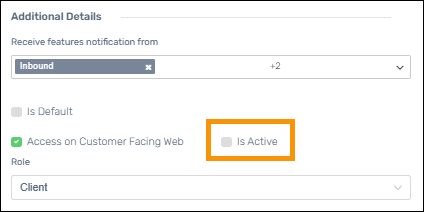
Figure 1: This CFW user is inactive as the Is Active” option is not checked.
Transaction: Improved Error Message for Item Location
Why this was needed:
When an item’s location does not match the transaction, the system now displays a clearer error message. This can occur if the Outbound Processing transaction is edited to change the Location where an item number is to be pulled.
What you'll see now:
The message will read:
"Item [item number] is not available [vault/pallet info] at location [location]. Please review and update the transaction."
What you need to do:
The original location chosen
will still be on the Outbound Processing transaction, either:
•Update the Outbound Processing transaction to use the
original location
or
•Use Move Location to fix the discrepancy
Administration: Location Deletion Fix
Previously, some locations could not be deleted even when they should have been. The system displayed this error: “An error occurred while deleting the locations.”
This issue has been resolved.
As a reminder, Locations are removed here: MSWhse > Administration > Warehouses > [Select Warehouse] > Locations tab.