Administration > Accounts & Permissions
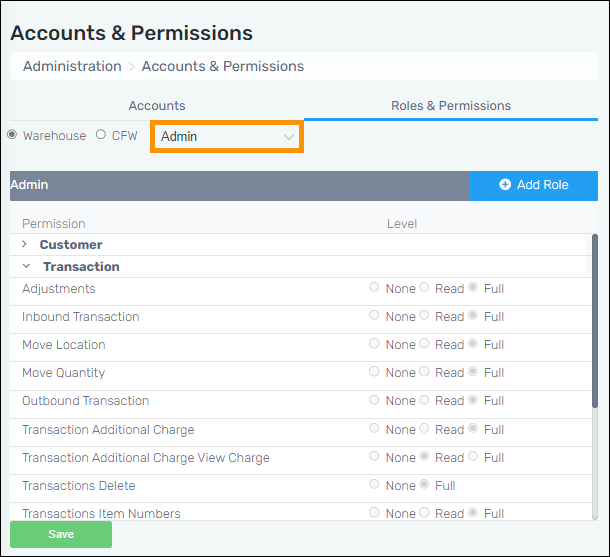
Use the Roles & Permissions tab to manage the Roles available to be assigned to Users’ (within the Accounts tab) and their specific permissions. Choose whether to view/edit a Role by selecting either Warehouse or CFW (Customer Facing Web). Warehouse is for internal roles and CFW is for external roles. Then choose the role from the dropdown, indicated in the orange outline in the image below. The Permissions available to that Role list within collapsible/expandable headers. Click a header to view very details permission options. The Permission Levels are:
None: The role does not see the data at all.
Read: The role can view the data. It is a “read only” permission.
Full: The role can view, add or edit information.
Regarding the permissions for “Dashboard”, Admin user will see dashboard by default. Permissions need to be set for Warehouse workers. CFW users will not see Dashboard at all.
Figure 12: Accounts & Permissions > Roles & Permissions tab
To update a current role:
Administration > Accounts & Permissions > Roles & Permissions Tab
Choose the Role from the drop down, update the desired permissions, click Save.
To create a new role:
Administration > Accounts & Permissions > Roles & Permissions Tab
Click the blue “ + Add Role” button. Enter the Role Name, choose a current role permission you wish to copy from, click Save. Then, update the permissions, as necessary.