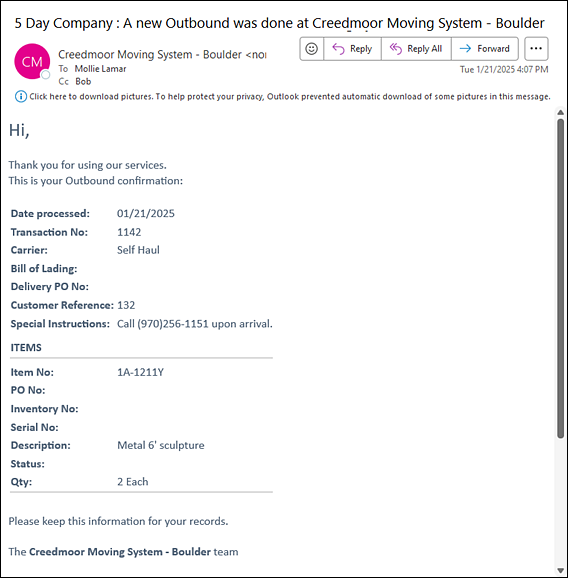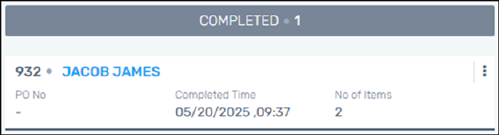
The reason to complete a transaction is to finalize the transaction, update all reports and invoice, along with send any automatic email notifications, if applicable. To have an email notification to be sent to a contact for a completed Outbound, that contact must be setup for this within Customer > Contact Info > Contact Person > Outbound. See Contact Info Tab for more information.
Figure 6: Outbound Completed column
To complete a transaction:
1. Either:
•Click on a transaction within Outbound Processing and drag it to the Completed section.
•From the transaction within Outbound Processing, click on the menu (three dots) on that transaction card > choose “Move to Completed.”
2. A warning pops up indicating that details on the transaction cannot be changed once the warning is confirmed. Either Cancel or Continue. So, if necessary, cancel the action, review the transaction, make any changes needed and then proceed to “Complete” the transaction.
IMPORTANT: Any Special Instructions added to an Outbound Transaction will list on the Outbound Notification Emails. If these need to be edited, edit before Completing the transaction.
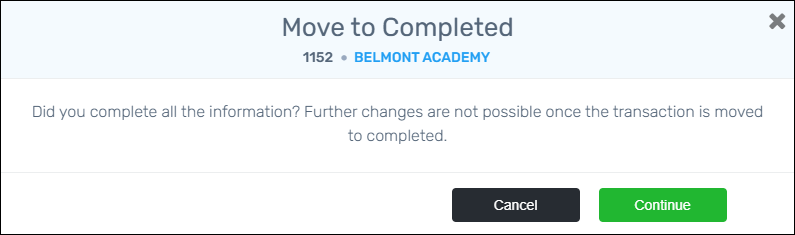
Figure 7: Confirmation when moving a transaction to Completed.
Click the three dots ( ) on any transaction card to generate any of
the following options:
) on any transaction card to generate any of
the following options:
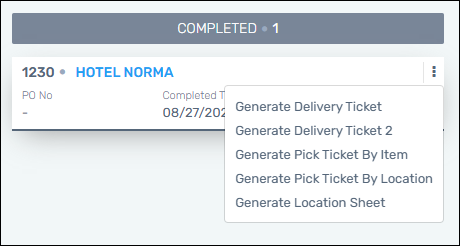
Figure 8: Menu options within an Outbound Completed transaction
The difference between Delivery Ticket and Deliver Ticket 2 is that Delivery Ticket 2 is organized by Inventory Numbers. If there is an item that does not have an Inventory Number in the transaction, it will be at the bottom of the list.
When the transactions is completed, this is an example of a Completed Outbound email Notification: