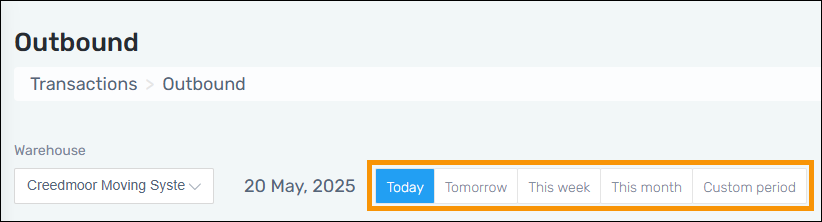
To find transaction histories, use the date buttons located to the right of the date: Today, Tomorrow, This week, This month, Custom Period. Custom period allows you to enter a custom date spread. This will list all transactions for all customers according to the time frame used. In the image below, the search will be for “Today” and the date for the range to left of the buttons indicates the results are for “30-Dec.2024.”
To narrow the information further, use the Search to limit the results to just one customer or project. Partial searches are accepted. Check “Display Deleted Transactions” to include those in the results.
Figure 3: Transaction History section
Cards with  are indicating that the transaction is
overdue.
are indicating that the transaction is
overdue.
Click on a card to see the Transaction’s Details, Items information, and documents or pictures that had been uploaded. Unlike the hyperlinks sent in transaction notification emails, links found within MSWhse do not expire as they are stored so that you can access them at any time. Links in emails expire after 7 days for security reasons. Photos for items would most likely list under the Item Number information detailed under Items.