
A video on this topic is located within Administration Videos. Click the link below to view the video that relates to this topic.
Administration > Imports > Import Locations
|
|
A video on this topic is located within Administration Videos. Click the link below to view the video that relates to this topic.
|
To add or update square footage and cubic footage data within MSWhse:
1. From Administration > Warehouses, choose a warehouse.
2. From Locations tab, choose a Location Type.
3. From the toolbar, click export.
4. Open that Excel spreadsheet.
5. Enter or update the Square Footage and Cubic Footage columns and save.
NOTE: If a location name is edited within the spreadsheet, a new entry in system will be created.
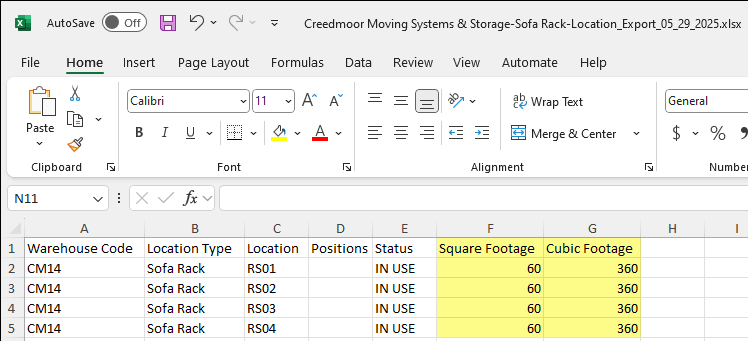
Figure 14: Import Locations spreadsheet
6. From Administration > Imports > Import Locations, click + Upload files to import the updated spreadsheet.
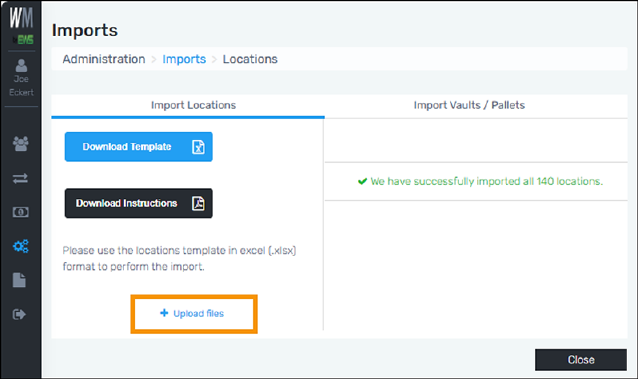
Figure 15: Use "Upload files" to select the file that is to be imported.
7. Choose the file and then click Open.
8. The file will now list within Import Locations. Click Import.
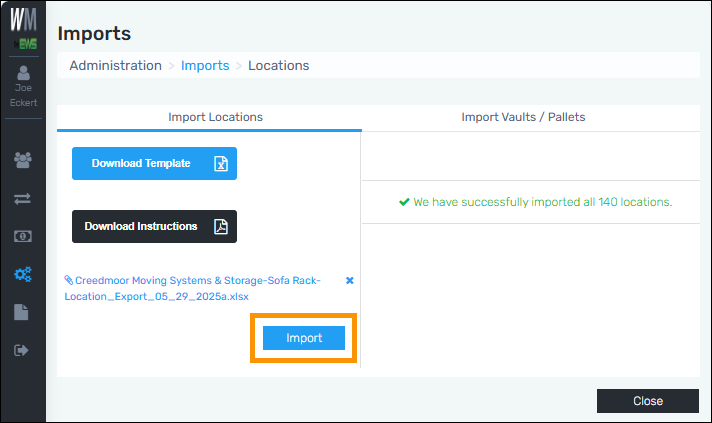
Figure 16: Clicking Import is when the file is actually imported.
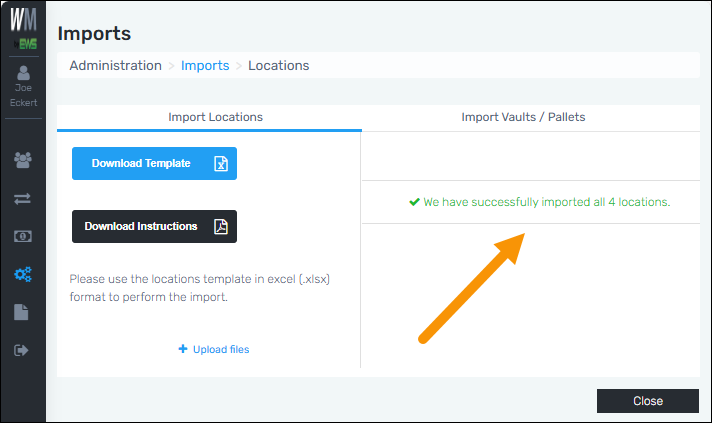
9. The message will update to show how many locations were successfully imported.
10. Click Close.
Of note:
•If a location name is edited within the spreadsheet, a new entry in system will be created.
•The system only looks at the Square Footage and Cubic Footage columns for updates. Some Location Imports have other columns - such as Status, L, C, or R for example - that can skew the lettering of the columns (A, B, C, etc.) Those are ignored during the import and only Square Footage and Cubic Footage are updated during the import.