1. Complete the steps within Finalize Billing.
2. Go to MoversSuite > Accounting Tools (in the header) > choose Generic Revenue Import.
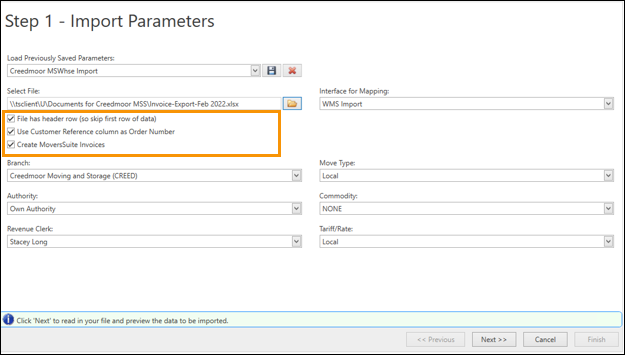
3. For your first import*, all parameters will need to be set. Once set and saved, you can choose the “Load Previously Saved Parameters” option in the drop down.
•Interface for Mapping: MSWhse
•Branch: Branch to receive the transactions/revenue.
•Move Type: Choose the appropriate move type for most of the storage customers within the spreadsheet (typically, Commercial, Storage, HHGD)
•Authority: Choose the appropriate authority for most of the storage customers within the spreadsheet (typically Own)
•Commodity: Choose the appropriate Commodity for most of the storage customers within the spreadsheet. (typically, O&I, Commercial, HHGD)
•Revenue Clerk: Choose your name
•Tariff/Rate: Choose the appropriate Tariff/Rate for most of the storage customers within the spreadsheet. (typically, O&I, Commercial, Storage)
*For the first import, once all parameters are chosen, please click the Save button and label this saved parameter.
4. Click on the folder next to Select File, and then choose the saved spreadsheet from MSWhse. There are options available under the Select File field that need attention and they are:
•File has a header Row (so skip first row of data): Please select this box as the first row of the MSWhse spreadsheet is a header row.
•Use Customer Reference column as Order Number: Please select this box as the MoversSuite order number is listed within the Customer Reference column.
•Create MoversSuite Invoices: This field is if you wish to have MoversSuite invoices auto created/generated in MoversSuite. We recommend this if invoices are auto sent to customers from MSWhse.
5. Click the Next >> button at the button right of the screen.
6. The next screen will generate any/all errors that will cause the import to not be completed.
•Yellow flags are warnings but will still allow the import to process through.
•Red flags are errors that will not allow the import to process through. The Status column will show the nature of the error.
Examples may include:


7. If there are errors, you will need to exit the Generic Revenue Import Box/Process, correct the errors, and begin again.
8. Once errors are corrected, proceed with the Generic Revenue Import steps again.
9. Click the Next button.
10. You will then watch all transactions be added and then shift to Completed status.
11. Once complete, click Next. You will then choose the Journal Date, Document Date, Bill Date, and Order Status.
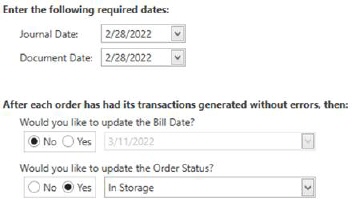
12. Click Next.
13. All Added Transactions will then be generated.
14. Click the Finish button. You have now imported the invoices from MSWhse into MoversSuite.
ADDITIONAL INFORMATION:
For details on the XML Interface Setup for MSWhse, please go to the MoversSuite Online Help and search XML Interface Setup.
For details on the XML Item Code Setup and MSWhse, please go to the MoversSuite Online Help and search XML Item Code Setup.