 to
open your file directory.
to
open your file directory. Administration > Configurations
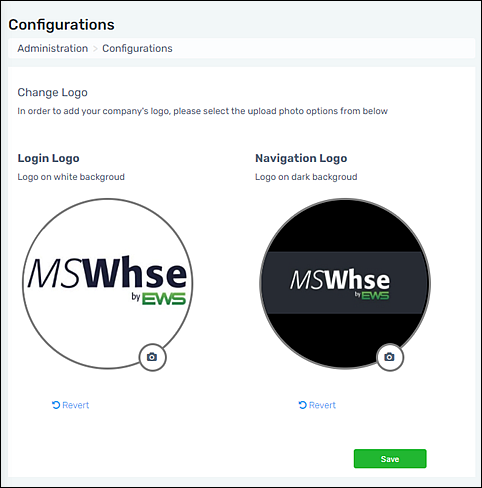
Use Configurations to manage the logos used throughout MSWhse.
The Login Logo is the logo used when logging in to the application. The Navigation Logo is the logo used in the upper right corner of the applications. Further, the Navigation Logo is also the logo used within Warehouse Receiving Reports (WRR).
To change the logo:
The MSWhse by EWS is the default logo. To change the logo to your company’s logo:
1.
Click the camera icon to
open your file directory.
2. Choose a logo.
3. Click Upload.
4. The image will appear in the circle. It is not necessary for the logo to completely fill the circle.
5. Click Save.
6. Log out and then log back in to see your changes.
Once Save is clicked, the Navigation Logo will automatically be used on any WRR PDFs going forward. Use “Revert” to go back to the image previously saved.
The following examples illustrate how different size logos affect their rendering on WRR PDFs.
This logo is formatted to be 1.5” H x 2.5” W x (in pixels 150 H x 250 W).
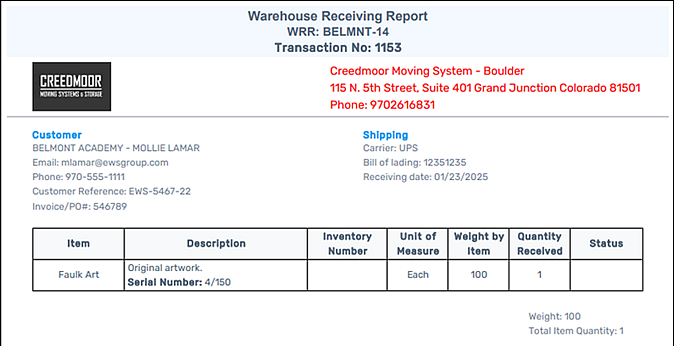
Figure 19: Logo is formatted as a rectangle.
This logo was formatted in a square approximately 2” x 2” (184 x 184 pixels).
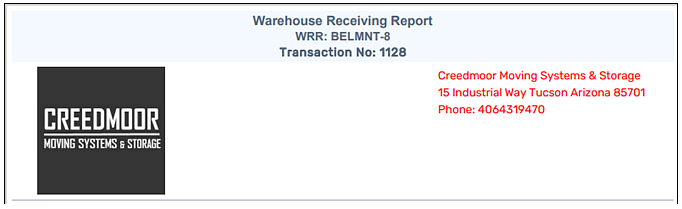
Figure 20: Larger square logo
This logo is formatted to be approximately 1” x 1” (96 x 96 pixels).
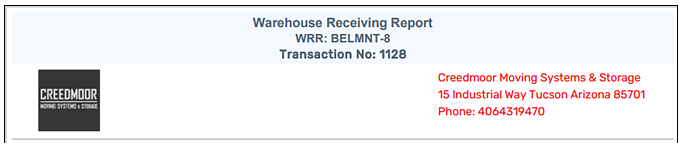
Figure 21: Smaller square logo