
A videos on this topic is located within Administration Videos. Click the link below to view the video that relates to this topic.
Administration > Accounts & Permissions
|
|
A videos on this topic is located within Administration Videos. Click the link below to view the video that relates to this topic.
|
Add/remove warehouse permissions, edit/delete email addresses, and change a user’s status within the Accounts tab.
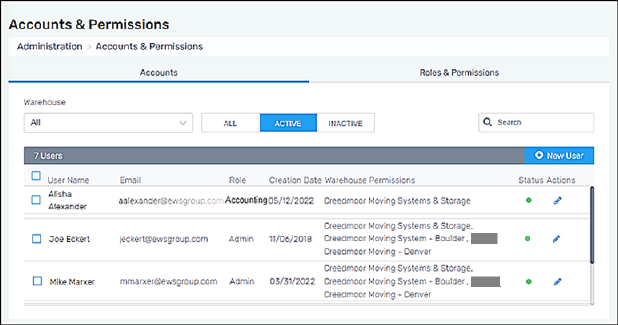
Figure 11: Accounts & Permissions > Accounts tab
To edit a User’s Account information:
Administration > Accounts & Permissions > Accounts Tab
Click the blue pen icon located under “Actions” for the user. Edit any information as needed as click save.
To add a new user:
Administration > Accounts & Permissions > Accounts Tab
Click the blue “ + New User” button. From the Add New User screen, enter the User’s Name, the user’s email address, their Role, the warehouse(s) they will have access to, and if they should receive email notifications of expected inbound transactions and requested outbound transactions. Click Save. Shortly after saving, the new user will receive an email to the email address on file with a link to set their password. This link will expire after 24 hours.
To make a user inactive:
Administration > Accounts & Permissions > Accounts Tab
Click the blue pen icon located under “Actions” for the user. Edit the Status to Inactive and click save.
To reset a password of a current user:
Administration > Accounts & Permissions > Accounts Tab
Check the box to the left of their User name, then click “Resend mail to set the account” at the bottom of the User table.